TL;DR
How to use the Action Button for one-press food logging: on Apple Watch Ultra, add a nutrition app's Voice Log or Quick Log shortcut to your Shortcuts library, enable Show on Apple Watch, then assign it under Settings → Action Button → Shortcut. One press opens voice logging or your saved meal templates—entirely on the wrist, no iPhone needed. This guide covers Ultra-specific setup, Voice Log versus Quick Log, and troubleshooting when shortcuts fail to appear or run.
In this guide
- Why the Action Button matters for nutrition
- Ultra setup steps
- Voice Log vs Quick Log
- Quick Switch and workout conflicts
- Troubleshooting
- FAQ
Why the Ultra Action Button Is a Nutrition Game-Changer
The Apple Watch Ultra ships with a dedicated orange Action Button on the left case—a physical control Apple designed for instant access to workouts, dives, waypoints, and shortcuts. According to Apple's Action Button documentation, you can assign Shortcut as the button action and trigger any shortcut synced to your watch.
For nutrition tracking, that means one press to start logging. No navigating home screens. No scrolling through app icons on a 49 mm display. Press, speak or tap, done.
The friction reduction is not trivial. Self-monitoring research shows that easier logging correlates with more consistent tracking—and consistency predicts better outcomes more than perfect accuracy. The Action Button collapses a multi-step workflow into a single physical gesture you can perform with chalk-covered hands at the gym or a spatula in the kitchen.
This guide focuses on Apple Watch Ultra and Ultra 2. For iPhone 15 Pro and later Action Button setup, see our dedicated Action Button meal logging guide—that post covers photo scanning and phone-side shortcuts in detail. Here we stay on the wrist.
For the full picture of watch-based nutrition—including complications, standalone logging, and app comparisons—start with our Apple Watch calorie tracker guide.
How to Set Up One-Press Food Logging on Apple Watch Ultra
These steps assume ProteinLog is installed on iPhone and Apple Watch. The same Shortcuts workflow applies to any nutrition app that exposes watch actions.
Step 1: Add the shortcut on iPhone
Open the Shortcuts app on iPhone. Scroll to the Apps section and tap your nutrition app. You should see watch actions—typically Voice Log and Quick Log. Long-press the action you want and tap Add to Library or New Shortcut.
Step 2: Enable Show on Apple Watch
Tap the shortcut you just added. Tap the info (i) button in the toolbar. Toggle Show on Apple Watch on. This syncs the shortcut to your Ultra so the Action Button menu can find it.
Wait 30–60 seconds for iCloud sync. If the shortcut does not appear on the watch, open the Shortcuts app on the Ultra briefly to force a refresh.
Step 3: Assign the shortcut to the Action Button
On your Apple Watch Ultra:
- Open Settings.
- Tap Action Button.
- Tap Action, then select Shortcut.
- Tap the shortcut name below and choose your Voice Log or Quick Log action.
Alternatively, open the Watch app on iPhone → Action Button → Shortcut and select the same action.
Apple's Shortcuts on Apple Watch guide notes that shortcuts created on iPhone sync to watch when iCloud Sync is enabled.
Step 4: Test with your phone out of reach
Put your iPhone in another room. Press the Action Button. Confirm voice logging or the template picker opens and that a test entry syncs when you reconnect. This validates the standalone workflow described in our standalone meal logging guide.
Step 5: Add a complication for feedback
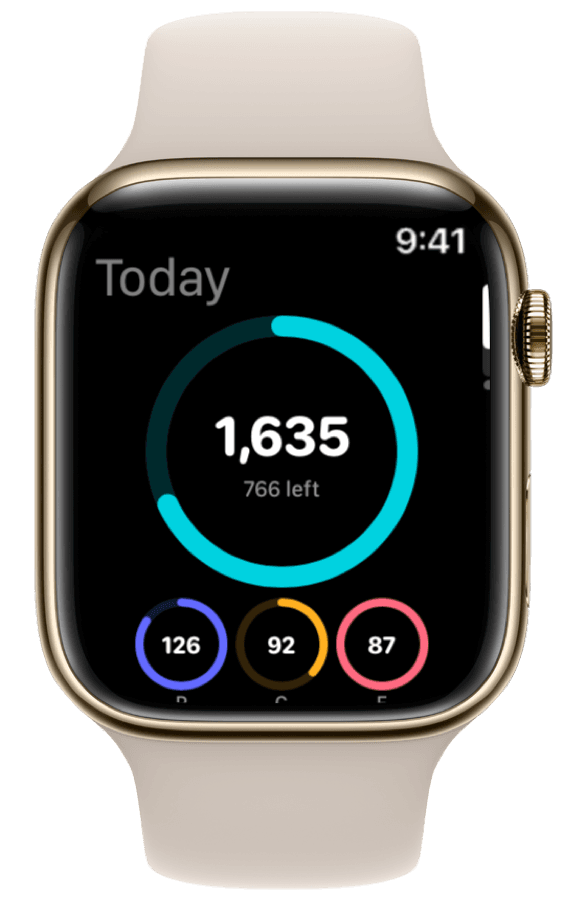
After logging via the Action Button, add a ProteinLog widget to your watch face to see protein and calories at a glance. Setup: watch face widgets guide.
Voice Log vs Quick Log: Which Action Button Shortcut to Choose
Both shortcuts run on the watch. The right choice depends on how you eat.
| Shortcut | Best for | Example use | Speed |
|---|---|---|---|
| Voice Log | Varied meals, restaurants, new recipes | "Grilled salmon, 180 grams, with rice and broccoli" | ~10–20 seconds |
| Quick Log | Repeat meals, meal prep, same breakfast daily | Tap "Standard Breakfast" template | ~3–5 seconds |
Choose Voice Log if your meals change daily or you eat out often. Speaking portions aloud beats typing on a watch keyboard, and AI parsing handles multi-item descriptions.
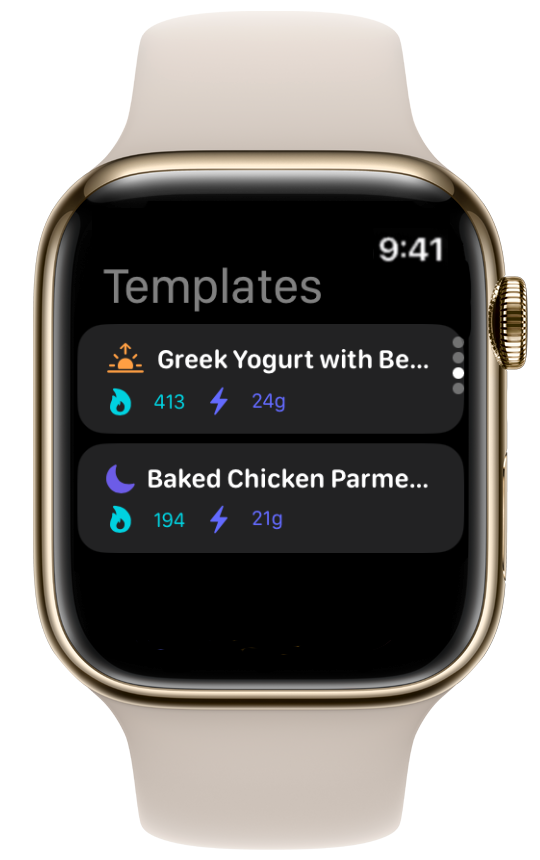
Choose Quick Log if you eat the same meals frequently. Build templates on iPhone first—overnight oats, protein shake, usual lunch—then one Action Button press surfaces them instantly.
You can change assignments anytime in Settings → Action Button. Some users run Voice Log as default and switch to Quick Log during cut phases when meals are repetitive.
Neither shortcut requires network access to capture the entry locally. Sync happens when Wi-Fi or cellular is available. For accuracy, describe portions specifically—the NHS Better Health calorie guidance emphasises that portion awareness drives reliable tracking.
Using Quick Switch When the Button Has Other Jobs
Ultra owners often assign the Action Button to workouts, dives, or Backtrack during outdoor activities. You do not have to permanently sacrifice those functions for food logging.
Quick Switch lets you press and hold the Action Button to choose a different action temporarily. Enable the actions you want in Settings → Action Button → Quick Switch. Include Shortcut alongside Workout or other defaults.
During a gym session, the button might start and stop your strength workout. After your last set, hold the button, switch to Shortcut, and voice log your post-workout shake. When you head out for a trail run tomorrow, switch back to Workout.
This flexibility is why the Ultra fits athletes who track nutrition seriously—the button adapts to context instead of locking you into one function.
Troubleshooting Action Button Food Logging
When one-press logging fails, the fix is usually one of the following.
Shortcut does not appear in Action Button menu
Cause: The shortcut was not synced to the watch or Show on Apple Watch is off.
Fix: Open Shortcuts on iPhone, tap the shortcut, enable Show on Apple Watch, and wait for sync. Open the Shortcuts app on the Ultra to verify it appears in your library. Restart both devices if sync stalls beyond two minutes.
Action Button opens wrong shortcut or nothing happens
Cause: A stale assignment or Quick Switch override.
Fix: Go to Settings → Action Button → Action → Shortcut and re-select the correct shortcut. If Quick Switch is enabled, confirm Shortcut is in the Quick Switch list. Disable Quick Switch temporarily to isolate the issue.
Voice Log hears me but does not log
Cause: Microphone permissions or ambiguous food description.
Fix: Check Settings → Privacy → Microphone on the watch and ensure your nutrition app has access. Retry with explicit portions: "150 grams chicken breast" instead of "chicken." Verify the entry in the iPhone app after reconnecting.
Entry logged on watch but not visible on iPhone
Cause: Sync delay, especially on a watch without cellular when Wi-Fi has not connected recently.
Fix: Open the nutrition app on iPhone to force a pull. Confirm Apple Health permissions on both devices. Ensure Bluetooth reconnects when you return to your phone—entries queue locally and sync in batch.
Action Button triggers Siren accidentally
Cause: Press-and-hold gesture conflict on older Ultra software.
Fix: In Settings → Action Button, disable Siren if you do not need it. A single firm press triggers the shortcut; hold activates Quick Switch or Siren depending on configuration.
Shortcut works on iPhone but not Ultra
Cause: The shortcut was not set up for Apple Watch or Show on Apple Watch is off.
Fix: Use the app's built-in watch shortcuts (Voice Log, Quick Log)—not custom iPhone-only shortcuts. Custom Shortcuts must include only watch-compatible actions. See Apple's Action Button customization guide for supported action types.
Button assigned to Workout and will not log food mid-session
Cause: Workout mode captures the Action Button for lap markers or pause/resume.
Fix: Use Quick Switch (press and hold) to select Shortcut without ending your workout. Alternatively, log via the watch app directly and reassign the button post-workout.
Protein targets look wrong after Action Button logs
Cause: Macro targets not configured before wrist logging.
Fix: Set daily protein, carb, and fat goals on iPhone first. Use the USDA DRI Calculator or our macro calculator for evidence-based baselines. Complications and daily totals reflect whatever targets the app holds.
How ProteinLog Makes the Action Button Worth Mapping
ProteinLog exposes Voice Log and Quick Log as first-class watch shortcuts designed for the Ultra Action Button. Both run without iPhone nearby. Quick Log surfaces saved meal templates; Voice Log parses natural descriptions into USDA-backed nutrition data. Pair either with watch face complications and you get press-to-log plus glanceable macro progress.
Download ProteinLog on the App Store and assign your preferred shortcut in under a minute.
Frequently Asked Questions
Can the Apple Watch Ultra Action Button log food without an iPhone?
Yes. Voice Log and Quick Log run on the watch. Photo scanning still requires iPhone hardware.
Why does my Action Button not show nutrition shortcuts?
Add the shortcut in the iPhone Shortcuts app and enable Show on Apple Watch. Wait for sync, then assign under Settings → Action Button.
Should I use Voice Log or Quick Log on the Action Button?
Voice Log for varied meals; Quick Log for repeat meals you saved as templates.
Does the Action Button work during a workout?
Yes, but it may control workout functions by default. Use Quick Switch to temporarily select Shortcut without stopping your session.
Can I use the Action Button for food logging on a regular Apple Watch?
No—the physical button is Ultra-only. Standard watches support voice and template logging through the app or Siri.
Where do I set up the iPhone Action Button for photo logging?
See our Action Button meal logging guide for iPhone 15 Pro and later setup—separate from this Ultra-focused guide.
How does this fit into a full watch nutrition workflow?
Combine Action Button logging with complications for at-a-glance macros and standalone meal logging for a complete wrist-based system.
Continue reading
Related guides
4 min read
How to Track Calories & Macros on Apple Watch in 2026 (The Complete Guide)
The complete Apple Watch calorie tracker guide for 2026. Compare apps, set up watch face widgets, voice logging, Action Button shortcuts, and Apple Health sync.
10 min read
The Best Apple Watch Workflows for Tracking Meals on the Go
Three Apple Watch meal tracking workflows for gym, restaurant, and desk—voice logging, photo capture, widgets, and templates for fast macro tracking on the go.
10 min read
How Apple Watch Activity Calories Integrate with Your Nutrition Targets
Learn how Apple Watch activity calories integrate with nutrition tracking via TDEE, Apple Health, and daily targets—with a worked 500-calorie run example.
Log Meals from Your Wrist
Try ProteinLog free for 7 days. Voice logging, watch complications, and Action Button shortcuts work on Apple Watch without your iPhone nearby. See the complete Apple Watch guide or use our free macro calculator to set your targets first.
Download on the App Store