TL;DR
Apple Watch "complications" are just the extra info slots on your watch face—weather, calendar, fitness rings, and app widgets like ProteinLog. Long-press your face → Edit → tap a slot → choose ProteinLog → pick Protein (ring) or Macros (calorie + protein summary). Every glance at the time becomes a quick nutrition check-in.
In this guide
- What watch face widgets are (in plain English)
- What ProteinLog shows on your face today
- How to add ProteinLog to your watch face
- Best watch faces for nutrition widgets
- How other apps compare
- FAQ
What Watch Face Widgets Are
When you long-press your Apple Watch face and tap Edit, you see small slots around the time—corners, edges, or a center area. Apple calls these complications; you can think of them as widgets on your watch face.
Each slot can show something useful: the date, weather, your next meeting, or—if you use a nutrition app—how much protein you have eaten today or your calorie total so far.
That matters because you probably look at your watch many times a day. The NHS Better Health programme notes that checking in on what you eat helps you make better choices. A face widget lowers the friction: no unlocking your phone, no hunting for an app.
New to watch tracking overall? Start with our complete Apple Watch calorie tracker guide. To log meals without your phone nearby, see logging meals from your wrist.
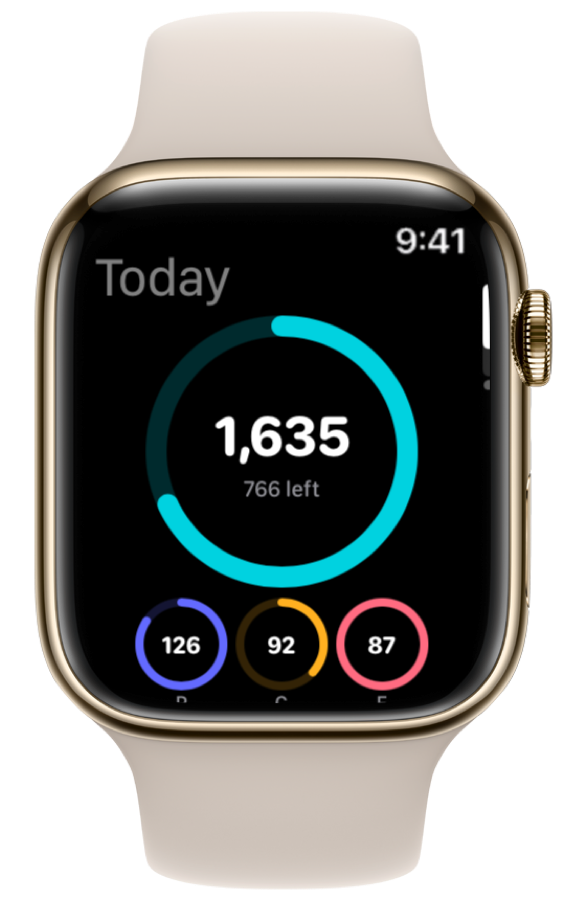
What ProteinLog Shows on Your Watch Face
ProteinLog currently offers two widgets in the watch face picker:
| Widget name | Best slot | What you see |
|---|---|---|
| Protein | Circular (round slot) | A progress ring toward your protein goal, with grams eaten in the center |
| Macros | Rectangular (wide slot) | Calories eaten and protein eaten as text with icons |
These update after you log a meal on your watch or phone and data syncs. They show what you have logged so far today—not a live stream, and not every macro separately yet.
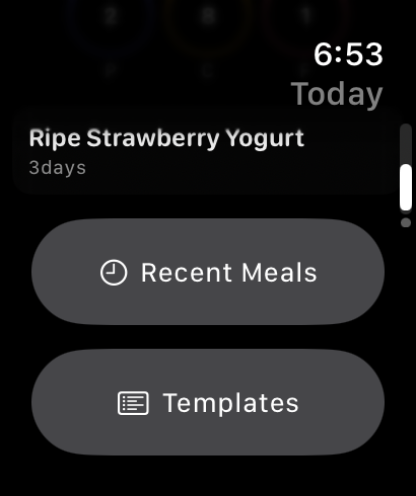
Coming soon (product roadmap): widgets for calories remaining, clearer "left to go" numbers, and richer macro breakdowns. Until those ship, use the in-app dashboard on your watch for the full picture after a quick tap.
Widgets display synced data—they do not replace logging. If you have not logged lunch, the face still shows morning totals until you capture that meal.
How to Add ProteinLog to Your Watch Face
On your Apple Watch
- Long-press your watch face until it wiggles.
- Tap Edit.
- Swipe until you reach the Complications screen (not Color or Style).
- Tap the slot you want to change.
- Turn the Digital Crown to scroll to ProteinLog.
- Choose Protein (ring) or Macros (summary text).
- Press the Digital Crown to save.
Repeat for a second slot if your face has room—many people put Protein in a round corner and Macros in a wide slot below the time.
On iPhone (easier on a big screen)
- Open the Watch app.
- Tap Face Gallery or a face under My Faces → Edit.
- Tap a complication slot and choose ProteinLog.
- Tap Set as current watch face if you created a new layout.
Apple's watch face customization guide covers built-in options. ProteinLog appears alongside Apple's own widgets like Activity and Weather.
Best Watch Faces for Nutrition Widgets
| Watch face | Why it works |
|---|---|
| Modular | Lots of slots—good for protein ring + macro summary together |
| Infograph | Multiple corners plus a large center area |
| Meridian / Contour | Clean look with one or two discreet slots |
| California | Minimal—one corner widget is enough for many people |
Modular and Infograph are popular if you want both ProteinLog widgets visible at once.
How Other Apps Compare on the Watch Face
Apps vary in what they put on your face—and whether logging still needs your phone.
| App | On your watch face | Log new meals from watch? |
|---|---|---|
| ProteinLog | Protein ring + calorie/protein summary | Yes — voice and saved meals |
| MyFitnessPal | Mostly calorie budget | Recent meals only |
| Cronometer | Detailed nutrient stats | Usually needs phone |
| Lose It! | Calorie budget | Recent meals only |
MyFitnessPal and Lose It! are fine for glancing at calories; logging still flows through the phone for most entries. Cronometer shows rich data on the wrist if you log at a desk.
The best setup pairs a face widget with easy logging—if your protein looks low at 4 p.m., you want to log a snack from your wrist, not trek back to your phone. See logging from your wrist and Action Button shortcuts.
Tips for Getting More From Face Widgets
Match the widget to your goal. Cutting weight? Watch calories closely. Building muscle? Put the Protein ring in your largest slot.
Set targets first. Use our free macro calculator or the USDA DRI Calculator so the ring reflects real goals.
Refresh after logging. If numbers look stale, open ProteinLog briefly on your watch to force a sync.
Combine with Apple Health. Your watch already tracks movement in the Activity rings. When ProteinLog syncs meals to Apple Health, you can compare food and activity in one place. See activity calories and nutrition.
How ProteinLog Fits In
ProteinLog widgets show protein and calorie progress on your face. Because you can also log by voice or saved meals on the watch, the numbers update after wrist-based entries—not only after phone logs. Try the full workflow free for 7 days.
Download ProteinLog on the App Store
Frequently Asked Questions
Can I show protein and calories on my Apple Watch face?
Yes. Add ProteinLog when editing your watch face and choose Protein or Macros.
Which watch faces support this?
Most current faces—Modular, Infograph, Meridian, Contour, California, and others—have at least one slot for third-party widgets.
How often do the numbers update?
After each logged meal or sync. They reflect your latest data but are not real-time streaming meters.
Do I need to open the app?
No for glancing—yes if you want to log or see full macro detail.
What is the best setup for weight loss?
Put the Protein ring where you will see it most. Protein at each meal supports satiety—the NHS healthy eating guidance recommends spreading protein through the day.
Do I need to log on iPhone for widgets to update?
No. Meals logged by voice or saved templates on the watch update after sync. See logging from your wrist.
Continue reading
Related guides
4 min read
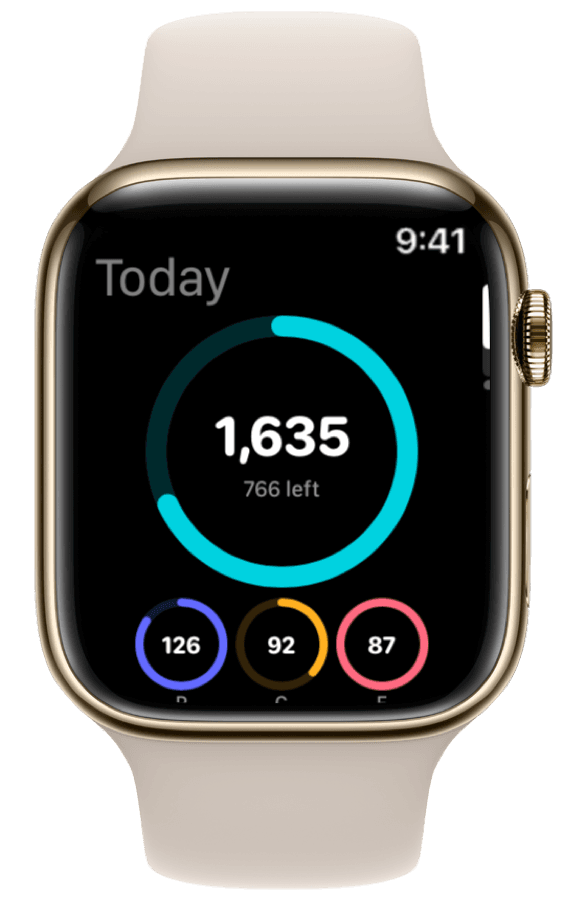
How to Track Calories & Macros on Apple Watch in 2026 (The Complete Guide)
The complete Apple Watch calorie tracker guide for 2026. Compare apps, set up watch face widgets, voice logging, Action Button shortcuts, and Apple Health sync.
10 min read
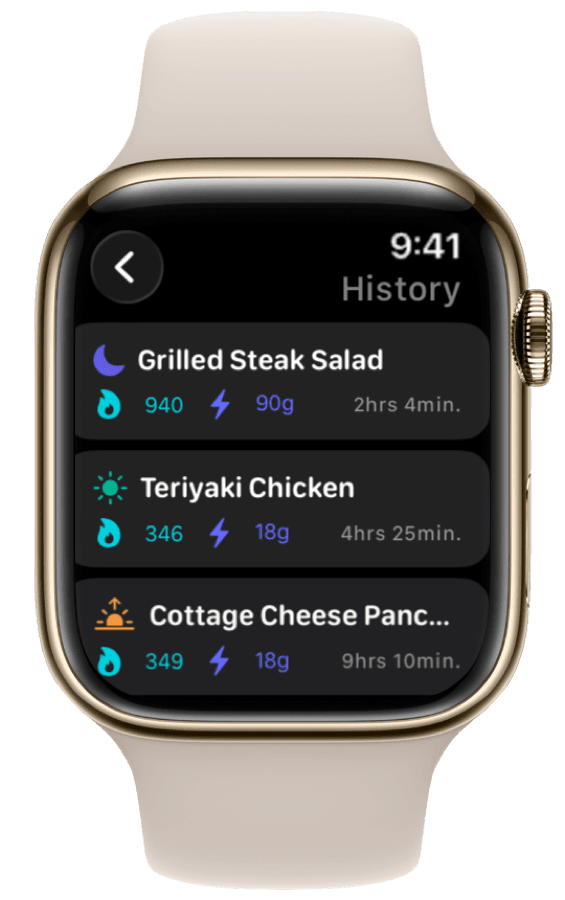
The Best Apple Watch Workflows for Tracking Meals on the Go
Three Apple Watch meal tracking workflows for gym, restaurant, and desk—voice logging, photo capture, widgets, and templates for fast macro tracking on the go.
10 min read
How Apple Watch Activity Calories Integrate with Your Nutrition Targets
Learn how Apple Watch activity calories integrate with nutrition tracking via TDEE, Apple Health, and daily targets—with a worked 500-calorie run example.
Log Meals from Your Wrist
Try ProteinLog free for 7 days. Voice logging, watch complications, and Action Button shortcuts work on Apple Watch without your iPhone nearby. See the complete Apple Watch guide or use our free macro calculator to set your targets first.
Download on the App Store