TL;DR
Understanding how Apple Watch activity calories integrate with nutrition tracking starts with TDEE: your baseline burn plus movement. Apple Health acts as the bridge—your watch records active and resting energy while nutrition apps write dietary intake. On a day you run 500 extra calories, your effective energy needs rise, and comparing both streams in Health helps you fuel appropriately without guessing. Set your baseline targets with our free macro calculator, then use our complete Apple Watch guide for logging setup.
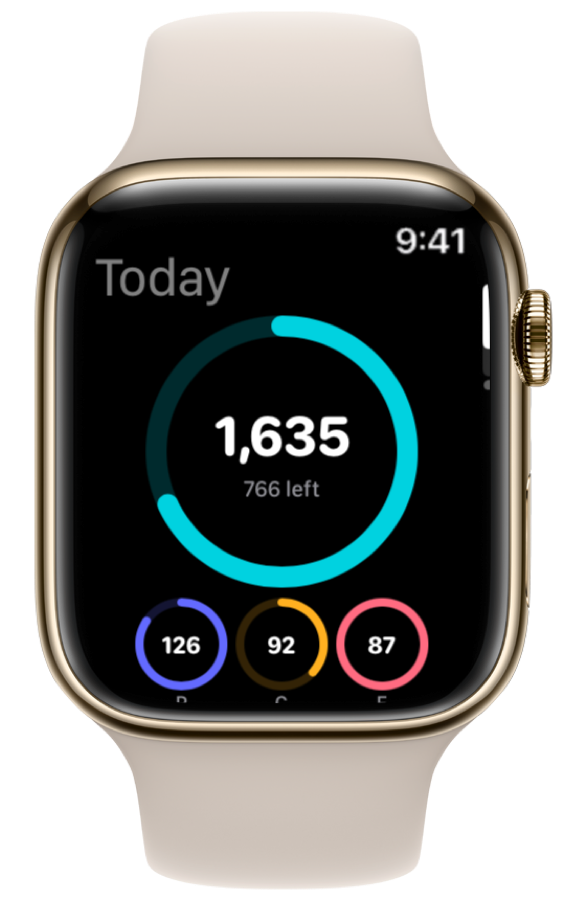
In this guide
- What TDEE means for your targets
- How Apple Watch measures burn
- Apple Health as the bridge
- Worked example: 500-calorie run
- Setup checklist
- FAQ
What TDEE Means and Why It Matters
Total Daily Energy Expenditure (TDEE) is the number of calories your body uses in a full day. It has two main parts:
- Basal metabolic rate (BMR) — energy to keep you alive at rest (breathing, circulation, cell repair).
- Activity burn — energy from movement, exercise, and non-exercise activity (walking, fidgeting, standing).
Most nutrition apps—including ProteinLog—estimate TDEE at setup using validated equations like Mifflin–St Jeor, which research shows is among the most reliable predictive formulas for resting metabolic rate (PubMed systematic review). You multiply BMR by an activity factor (sedentary, lightly active, active, very active) to get TDEE, then adjust for weight loss, maintenance, or muscle gain.
That static TDEE target works well for average weeks. It breaks down when your actual movement diverges sharply from your selected activity level—marathon training weeks, sedentary desk jobs with weekend hikes, or travel days with 20,000 steps. That is where Apple Watch activity calories become useful: they capture day-to-day variation your onboarding estimate cannot.
| Term | What it measures | Where you see it |
|---|---|---|
| BMR / Resting Energy | Calories burned at complete rest | Apple Health → Resting Energy |
| Active Energy | Calories from movement and exercise | Apple Watch Move ring, Health → Active Energy |
| TDEE (estimated) | BMR + activity, used for nutrition targets | Macro calculator, app goal setup |
| Dietary Energy | Calories consumed from food | Nutrition app logs → Health → Dietary Energy |
The CDC frames sustainable weight management around balancing energy intake with expenditure. TDEE is the starting line; your watch refines the finish line on any given day.
How Apple Watch Measures Calories Burned
The Apple Watch estimates energy expenditure using heart rate, movement sensors, GPS (during outdoor workouts), and personal metrics you enter (age, sex, height, weight). Apple Health stores burn in two main buckets:
- Resting Energy (Basal Energy Burned) — your approximate BMR, updated gradually as your metrics change.
- Active Energy — calories attributed to movement above resting level, including structured workouts and general activity.
During a tracked run, cycling session, or HIIT class, the watch records a workout with an associated active calorie total. General movement throughout the day also accumulates toward your Move ring. Apple's support guide notes that calorie estimates are approximations and vary by individual physiology, device fit, and activity type.
Independent analyses suggest Apple Watch heart rate accuracy is strong—often within a few percent of lab measurements—but calorie burn estimates can differ from measured expenditure by roughly 15–30% (wearable validation overview). Treat watch numbers as directional: useful for comparing Tuesday to Thursday, less reliable as a precise ledger entry.
For nutrition planning, the practical takeaway is simple. Your watch tells you relative output. Your nutrition app tells you input. Integration means putting both on the same scoreboard.
Apple Health: The Bridge Between Burn and Intake
Apple Health is the shared health app on iPhone. Nutrition apps and your watch both write data there—food calories from your tracker, activity calories from your watch—so you can see both in one place.
Here is how the bridge works in practice:
| Data type | Source | Direction |
|---|---|---|
| Active Energy | Apple Watch | Watch → Health |
| Resting Energy | Apple Watch / iPhone | Watch → Health |
| Workouts | Apple Watch | Watch → Health |
| Dietary Energy | Nutrition app (e.g., ProteinLog) | App → Health |
| Dietary Protein, Carbs, Fat | Nutrition app | App → Health |
When you log a meal in a nutrition app with Health sync enabled, dietary energy consumed writes to Apple Health. Your watch continuously writes active energy. Open the Health app, browse to a day, and you can see both totals side by side—calories in versus calories out at a glance.
This matters because many people set a fixed 2,000-calorie deficit target based on a sedentary TDEE estimate, then wonder why they feel depleted after a 10-mile run. The watch already recorded 800 active calories; Health shows the gap. You do not need a second app to do the math if both streams are connected.
Apps like MyFitnessPal historically read active energy from Health to add "exercise calories" back to daily budgets. ProteinLog takes a different approach: it sets evidence-based macro targets at onboarding (matching our macro calculator logic) and writes intake to Health so you can cross-reference burn data the watch already stores. Your dashboard shows progress against your goal; Health shows the fuller energy-balance picture when you want it.
For wrist-based logging that keeps intake data current, see our standalone meal logging guide and the watch face widgets guide—both keep dietary data flowing even when you are away from your desk.
Worked Example: A 500-Calorie Run
Let us walk through a concrete scenario showing how Apple Watch activity calories integrate with nutrition tracking on a single day.
Profile: Alex, 32, 175 lb (79 kg), lightly active job, goal is fat loss.
Step 1 — Baseline TDEE from onboarding
Using Mifflin–St Jeor with a light activity multiplier:
- Estimated BMR: ~1,780 kcal
- TDEE (light activity × 1.375): ~2,450 kcal
- Fat-loss target (−500 kcal deficit): ~1,950 kcal/day
Alex sets 1,950 calories and 150 g protein in ProteinLog via the macro calculator.
Step 2 — Unexpected hard run
After work, Alex runs 5 miles. Apple Watch records the workout at 500 active calories (an estimate—the true burn might fall between ~350 and ~650 given typical wearable variance).
Step 3 — What changes on this day
| Metric | Without watch context | With Apple Health integration |
|---|---|---|
| Static app target | 1,950 kcal | 1,950 kcal (unchanged baseline) |
| Active energy (watch) | Unknown | +500 kcal logged in Health |
| Approximate daily burn | ~2,450 kcal assumed | ~2,450 + 500 = ~2,950 kcal |
| Deficit if eating 1,950 kcal | ~500 kcal (planned) | ~1,000 kcal (potentially too aggressive) |
Alex's fixed 1,950-calorie target still displays in ProteinLog. But in Apple Health, dietary intake (1,950) versus resting plus active burn (~2,950) reveals a 1,000-calorie deficit—double the intended rate. That explains post-run fatigue and poor sleep.
Step 4 — Adjusting intelligently
Sports nutrition guidance from the Academy of Nutrition and Dietetics emphasises matching fuel to training load. Alex has three reasonable options:
- Eat back half the active calories — target ~2,200 kcal today (add ~250 kcal post-run snack with protein and carbs).
- Eat back all active calories on hard days only — target ~2,450 kcal today, maintain 1,950 on rest days.
- Keep protein fixed, add carbs — stay at 150 g protein, increase carbs by 60–80 g (~240–320 kcal) from fruit, rice, or a shake.
The watch does not automatically change Alex's ProteinLog goal—but the Health bridge makes the decision visible. Over a week, Alex might average a true ~500-calorie deficit without under-fueling training days.
This is the core integration story: baseline targets from TDEE, daily refinement from watch data, unified view in Apple Health.
Fixed Targets vs. Dynamic Adjustment: What to Expect
Not every nutrition app handles activity calories the same way. Understanding the models prevents frustration.
| Approach | How it works | Trade-off |
|---|---|---|
| Static TDEE target | One daily calorie goal from onboarding | Simple; may under- or over-shoot on variable activity days |
| Exercise calorie add-back | App reads active energy from Health and increases budget | Convenient; can overestimate if watch burn is high |
| Health cross-reference | App writes intake; you compare against watch burn in Health | Transparent; requires you to interpret the gap |
| Weekly average | Same daily target; adjust weekly based on weight trend | Slow feedback; robust to daily noise |
ProteinLog uses a static TDEE-based target with Health sync for transparency. That aligns with research showing individual RMR prediction errors of 10% or more are common (PMC validation study)—adding another imprecise number (watch burn) on top of an already estimated target can compound error. Viewing both in Health lets you make informed manual adjustments without autopilot overeating.
If your activity level changed permanently—new job on your feet all day, started CrossFit five days a week—recalculate TDEE in our macro calculator and update goals in the app rather than chasing daily watch fluctuations.
How to Set Up the Integration
Follow these steps to connect Apple Watch burn data with nutrition intake through Apple Health.
-
Confirm Apple Watch health permissions — On iPhone, open the Watch app → Privacy & Security → ensure Heart Rate and Fitness Tracking are enabled. Your watch writes active and resting energy automatically.
-
Set baseline macro targets — Use the free macro calculator to estimate TDEE, protein, carbs, and fat. Enter the same values in ProteinLog goal setup during onboarding.
-
Enable Apple Health sync in ProteinLog — During onboarding or in Settings → Apple Health, grant write access for dietary energy, protein, carbohydrates, and fat. Each logged meal writes to Health.
-
Verify data in Apple Health — Open Health → Browse → Activity → Active Energy for burn, and Nutrition → Dietary Energy for intake. Pick a day you logged meals and confirm both appear.
-
Review after hard training days — After workouts over 300 active calories, open Health and compare intake to resting plus active burn. Adjust eating if your deficit exceeds your planned rate.
-
Add watch logging for consistency — Intake data is only useful if it is complete. Set up voice logging on Apple Watch or Action Button shortcuts so post-workout meals get logged before you forget.
-
Check trends weekly, not hourly — The WHO physical activity guidelines recommend consistent movement over time. Weight and performance respond to weekly energy balance more than any single day's math.
For the full watch setup series—including watch face widgets, voice logging, and on-the-go workflows—start with our complete Apple Watch calorie tracker guide.
How ProteinLog Makes This Easier
ProteinLog sets your macro targets using the same Mifflin–St Jeor logic as our web calculator, then syncs every logged meal to Apple Health alongside the active energy your watch already records. You get a clear in-app dashboard for daily progress and a unified energy picture in Health when activity varies. Pair it with wrist logging from our meal tracking workflows guide so intake data stays as accurate as your burn data.
Frequently Asked Questions
How do Apple Watch activity calories integrate with nutrition tracking?
Your watch estimates active and resting energy; nutrition apps write dietary intake to Apple Health. When both streams are present, you compare calories in versus calories out and adjust eating on high-movement days without abandoning your baseline TDEE target.
What is TDEE and how does Apple Watch relate to it?
TDEE equals basal metabolism plus activity burn. Apple Watch tracks those components separately in Health. Your nutrition target typically comes from a TDEE estimate at setup—not a live recalculation every time your Move ring closes.
Should I eat back exercise calories from my Apple Watch?
On heavy training days, eating back some or all estimated active calories helps prevent under-fueling and supports recovery. Because watch estimates can vary significantly, many athletes eat back 50–75% rather than the full number.
Does ProteinLog adjust my calorie goal when I burn more on Apple Watch?
ProteinLog maintains your onboarding targets and writes intake to Apple Health. Your watch burn data lives in the same Health store, so you can review both and decide whether to eat more on unusually active days.
How accurate are Apple Watch calorie burn estimates?
Heart rate tracking is highly accurate; calorie estimates are less so. Apple acknowledges individual variation. Use watch data for trends and relative comparisons across days rather than treating 500 active calories as exactly 500.
Can I see TDEE directly on my Apple Watch face?
Apple Watch emphasises the Move ring (active calories), not a combined TDEE total. Resting energy appears in the Health app on iPhone. Add your resting and active totals there for a full-day burn estimate.
How does this connect to the rest of the Apple Watch guide series?
This article covers the energy-balance layer. For app comparisons, watch face widgets, voice logging, and Action Button setup, see the complete Apple Watch guide and linked setup posts in that series.
Continue reading
Related guides
4 min read
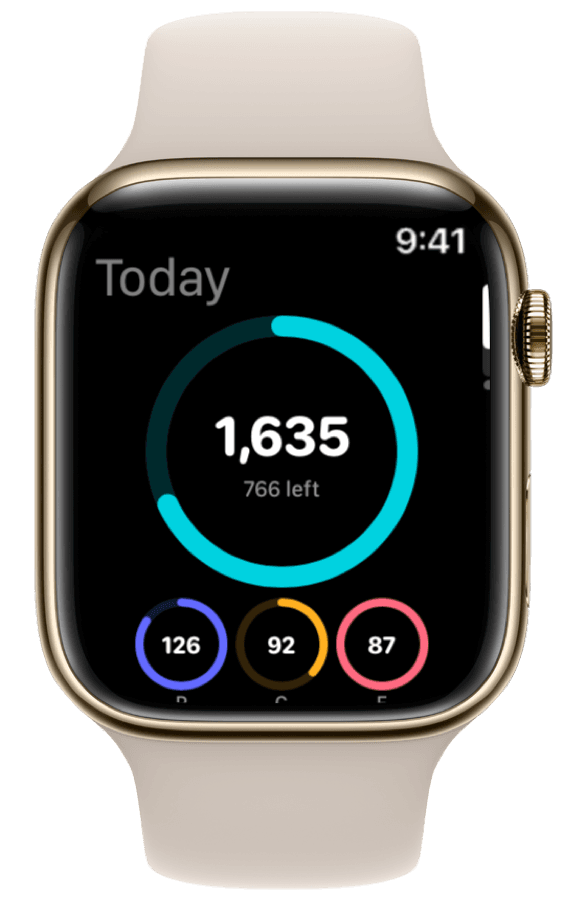
How to Track Calories & Macros on Apple Watch in 2026 (The Complete Guide)
The complete Apple Watch calorie tracker guide for 2026. Compare apps, set up watch face widgets, voice logging, Action Button shortcuts, and Apple Health sync.
10 min read
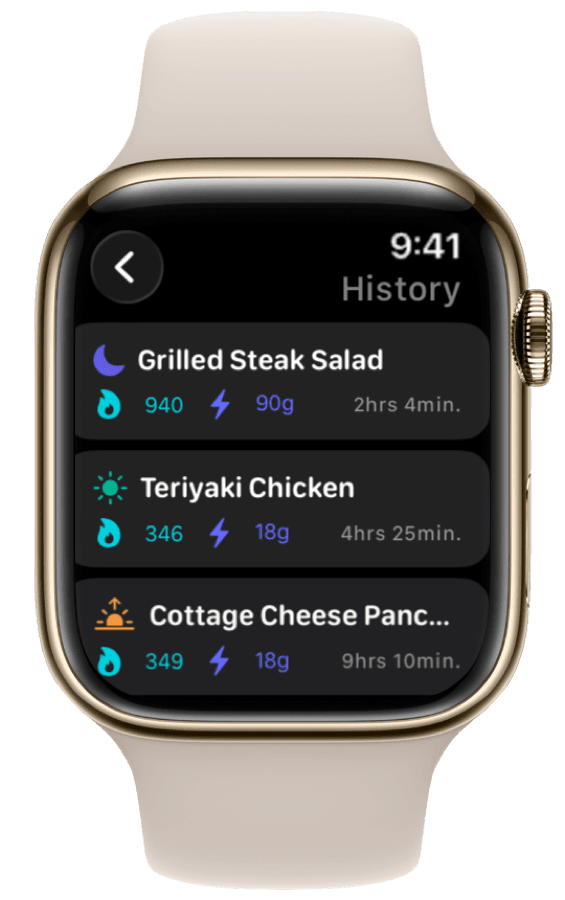
The Best Apple Watch Workflows for Tracking Meals on the Go
Three Apple Watch meal tracking workflows for gym, restaurant, and desk—voice logging, photo capture, widgets, and templates for fast macro tracking on the go.
7 min read
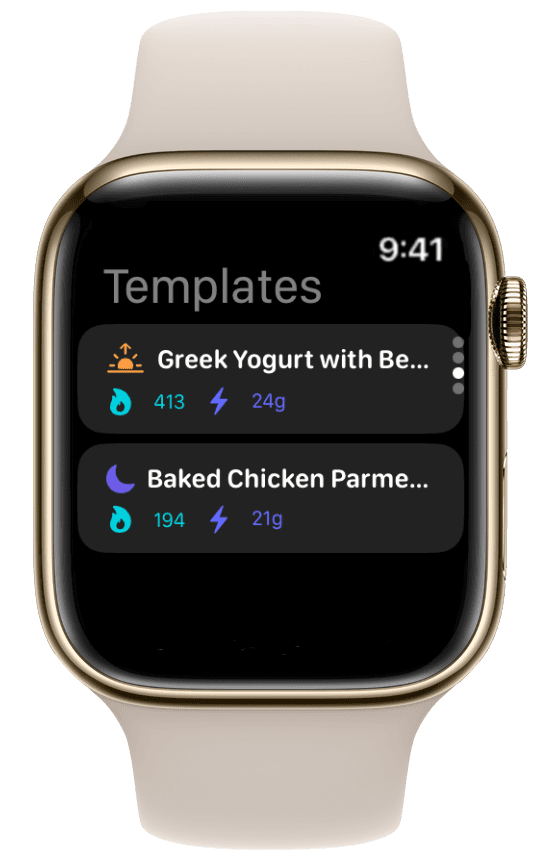
Action Button for Food Logging: The Apple Watch Ultra Nutrition Hack
Map the Apple Watch Ultra Action Button to one-press food logging. Voice Log and Quick Log shortcuts, setup steps, and troubleshooting.
Log Meals from Your Wrist
Try ProteinLog free for 7 days. Voice logging, watch complications, and Action Button shortcuts work on Apple Watch without your iPhone nearby. See the complete Apple Watch guide or use our free macro calculator to set your targets first.
Download on the App Store