TL;DR
The best watch workflows for tracking meals on the go depend on where you are: voice logging after the gym, AI photo capture at restaurants (with your watch showing today's progress), and widgets plus templates at your desk. Each workflow takes under 30 seconds once configured. This guide walks through all three with setup steps, then links to our complete Apple Watch guide, standalone logging setup, and Action Button shortcuts.
In this guide
- Why workflows beat willpower
- Workflow 1: Gym — voice logging
- Workflow 2: Restaurant — photo from phone
- Workflow 3: Desk — widgets and templates
- Compare the three workflows
- Setup checklist
- FAQ
Why Workflows Beat Willpower
Consistency in nutrition tracking is less about discipline and more about friction. Research on habit formation shows that behaviours tied to stable cues—same time, same place, same sequence—become automatic faster than behaviours that require decisions.
The Apple Watch is always on your wrist. That makes it an ideal cue device: glance at protein eaten so far before ordering, log a shake before leaving the locker room, tap a template between meetings. But the watch excels at different tasks in different contexts. Trying to type a full restaurant order on a 45 mm screen fails. Trying to voice-log a quiet business lunch fails. Matching the tool to the scene is what separates sustainable tracking from abandoned New Year's resolutions.
This guide covers three scenarios gym-goers, professionals, and frequent diners hit constantly. Each workflow uses ProteinLog features documented across our Apple Watch series—linked below so you can go deeper on any step.
Workflow 1: The Gym — Voice Logging After Your Set
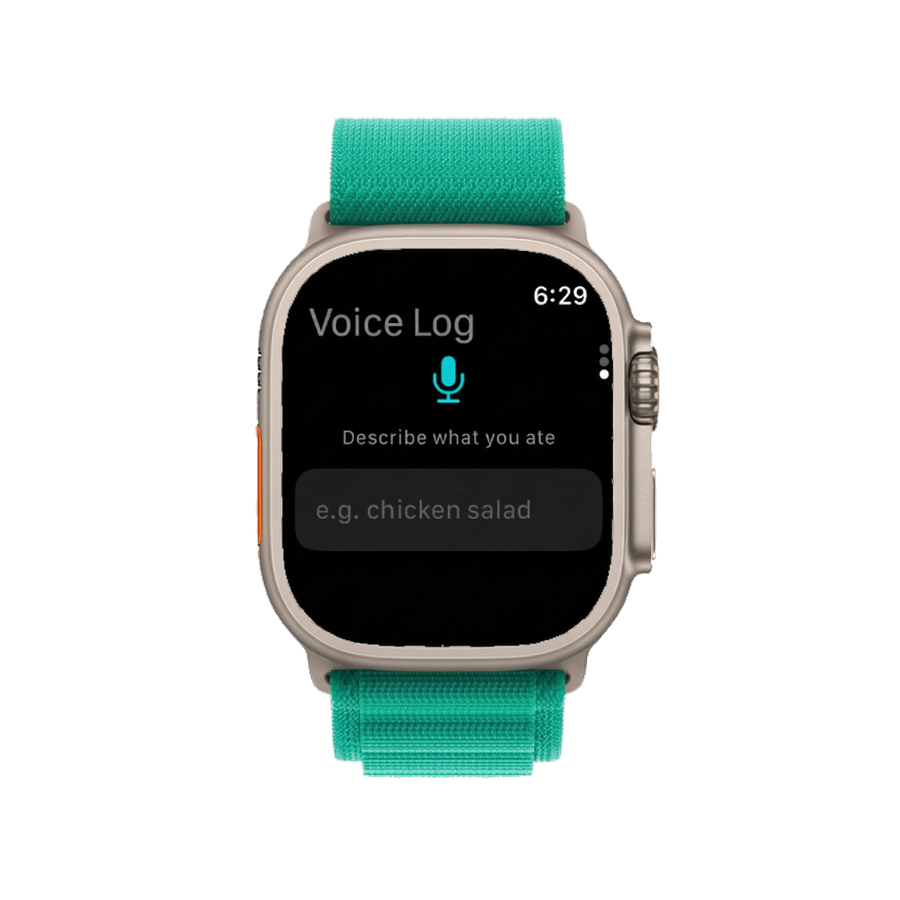
You finish a workout. Your hands are chalky, your phone is in a locker, and the post-workout anabolic window narrative is screaming at you to eat protein. This is the highest-friction logging moment of the day—and the one where voice logging on Apple Watch shines.
Why voice wins at the gym
Typing on a watch is slow. Pulling out your iPhone mid-gym floor breaks flow and may violate gym phone policies. Voice lets you speak naturally while walking to the shake bar: "whey isolate scoop, one banana, 300 ml oat milk." ProteinLog's AI parses ingredients, estimates portions, and logs macros without touching a keyboard.
ProteinLog runs voice logging on the watch—no iPhone required after setup. Full configuration steps live in our standalone meal logging guide.
Step-by-step gym workflow
-
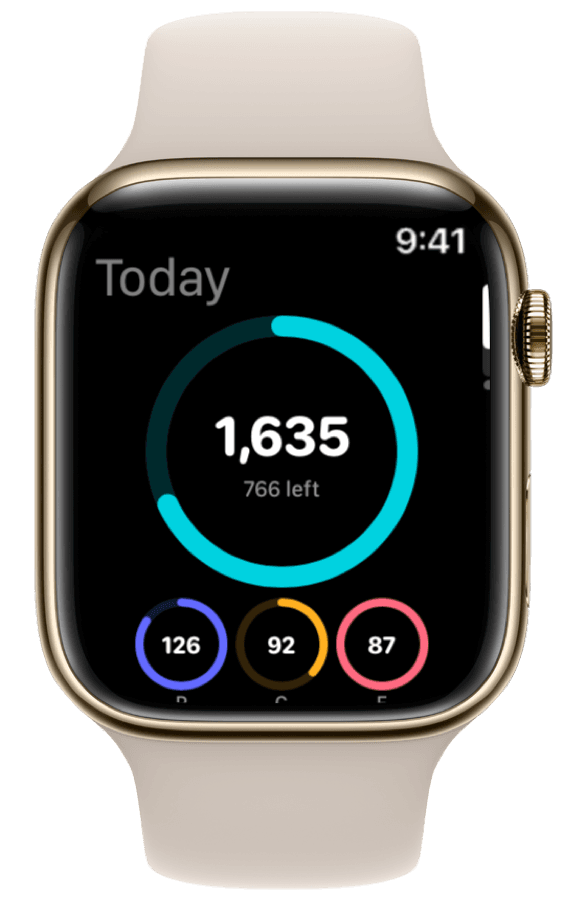
Before your session — Glance at your watch face widget to see protein eaten so far. If you are 40 g short for the day, plan your post-workout meal accordingly.
-
Finish your last set — Open ProteinLog on your watch (or press the Action Button if mapped to Voice Log on Ultra models). See Action Button meal logging for mapping instructions.
-
Speak your meal — Describe foods and approximate portions. Include brand names for packaged items ("Optimum Nutrition Gold Standard scoop") when you know them.
-
Confirm and save — Review parsed items on the watch screen, adjust if needed, and save. The meal syncs to iPhone and writes to Apple Health if sync is enabled.
-
Check your dashboard — Protein and calories update on your watch face after sync. You know immediately whether you hit your daily target.
Gym workflow pro tips
| Tip | Why it helps |
|---|---|
| Save your shake as a Quick Log template | One tap on repeat days; voice only when the meal varies |
| Map Action Button → Voice Log on Ultra | One press from any screen—fastest possible entry |
| Log immediately, not at home | CDC guidance on healthy weight emphasises consistent monitoring; delayed logging drops accuracy |
| Keep descriptions simple | "chicken breast 200 grams, rice one cup" beats a recipe essay |
Apple Watch Ultra users should read our Ultra Action Button food logging guide for troubleshooting if Shortcuts do not fire mid-workout.
Workflow 2: The Restaurant — Photo Logging With Watch Context
Restaurant meals are the hardest to estimate. Portion sizes vary, sauces hide calories, and social pressure makes pulling out a food scale absurd. The best approach combines AI photo logging on iPhone with watch context for real-time budget awareness.
Why photo beats voice at restaurants
Ambient noise, privacy, and menu complexity all favour the camera. ProteinLog's AI photo scanner identifies dishes, estimates portions, and returns macro breakdowns in seconds. The iPhone camera and screen real estate handle multi-item plates better than voice alone.
Your Apple Watch still plays a critical role—not as the logging device, but as the decision support layer before and after you eat.
Step-by-step restaurant workflow
-
Before ordering — Check your watch face. If you have room in your calorie and protein budget, you know whether to order the pasta or the grilled salmon before the waiter returns.
-
When food arrives — Open ProteinLog on iPhone (from pocket, not the table center) and tap the camera. Snap one photo covering the full plate. The AI photo calorie counter approach handles multi-item recognition.
-
Review on phone, confirm on wrist — Adjust portions on iPhone if the AI undercounted dressing or cheese. Save the meal. Within seconds, your watch face widget updates.
-
Dessert decision — Glance at your wrist. If 200 calories remain, split dessert. If zero, order coffee. No mental math required.
-
Optional: log drinks separately — Voice-log wine or cocktails on your watch under the table if a photo is impractical. Hybrid workflows are valid.
Watch context without watch logging
This workflow highlights an underappreciated pattern: the watch informs; the phone captures. You are not failing at watch-first tracking—you are using each device where it wins. Apple Shortcuts on iPhone can even open the camera scanner from a Lock Screen widget for one tap from your pocket.
For understanding how logged intake compares to calories burned from walking to the restaurant, see our activity calories integration guide.
Restaurant accuracy tips
| Challenge | Workflow fix |
|---|---|
| Shared plates | Photograph your portion before sharing; log as a fraction if needed |
| Hidden oils and sauces | Add "with olive oil" or "cream sauce" in the text adjustment step |
| Tasting menus | Log each course as it arrives—one photo per plate, not one at the end |
| Alcohol | Log drinks separately; liquid calories are easy to forget |
The USDA FoodData Central database underpins many restaurant ingredient estimates. ProteinLog also draws from verified sources including FatSecret for branded items.
Workflow 3: The Desk — Widgets and Meal Templates
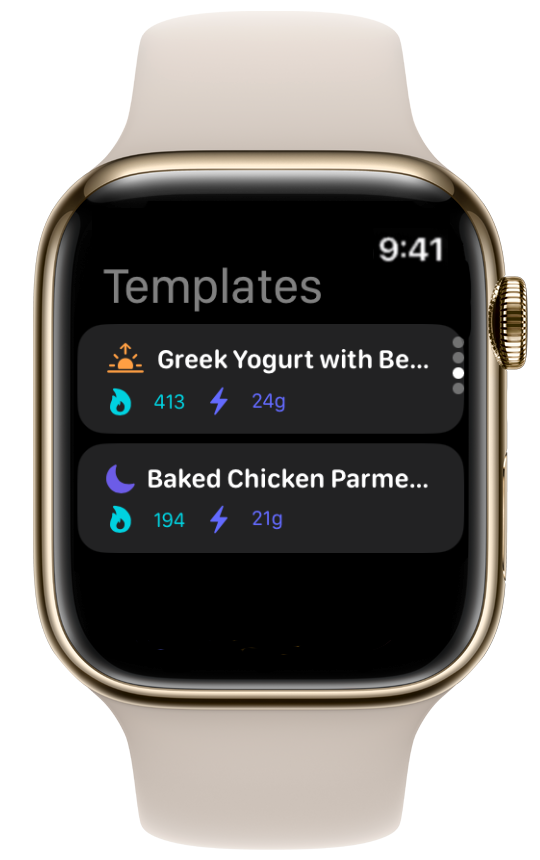
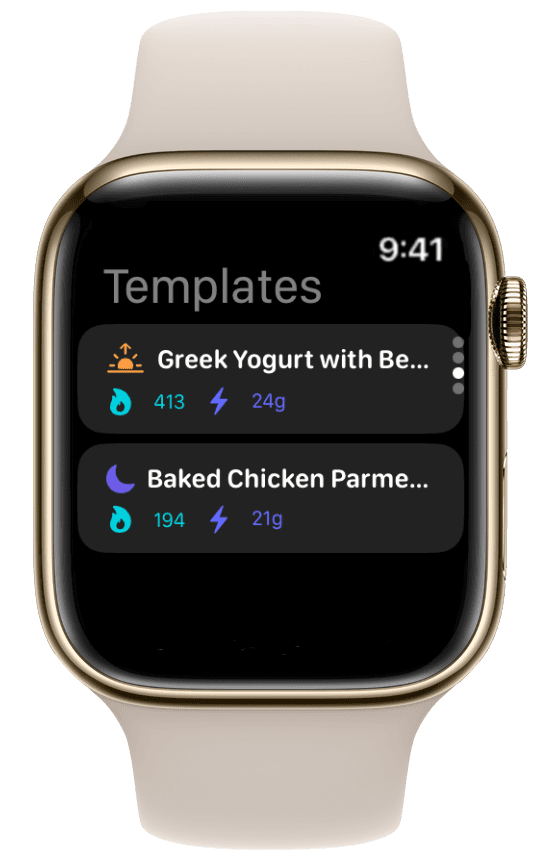
The desk is where tracking should be easiest—and where app fatigue hits hardest. Same salad every Tuesday, same protein shake at 3 pm, same afternoon apple. Meal Templates, Lock Screen widgets, and watch Quick Log turn repeat meals into one-tap actions.
Why templates win at the desk
Meal Templates (saved meals you re-log with one tap) eliminate redundant data entry. Combined with iOS widgets, you log without opening the full app—critical when Slack is pinging and your lunch break is twelve minutes.
Your Apple Watch extends this to your wrist: assign Quick Log to the Action Button or open templates from the watch app between meetings.
Step-by-step desk workflow
-
Build templates once — Log your usual desk lunch (e.g., chicken salad, Greek yogurt, rice bowl) on iPhone. Save each as a Meal Template with a clear name.
-
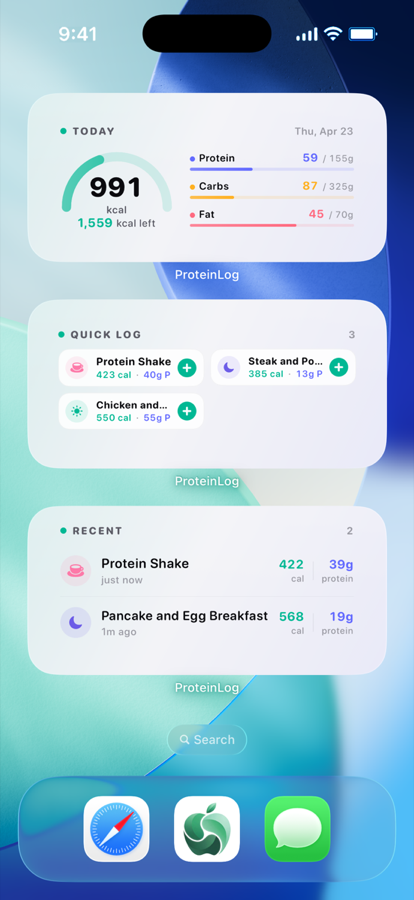
Add Lock Screen widgets — Long-press your Lock Screen → Customize → add ProteinLog's logging widget. One tap opens Quick Log or the photo scanner without unlocking to the home screen.
-
Add Home Screen widgets — Place the macro dashboard widget where you see it during work. Remaining protein becomes ambient awareness, like calendar events.
-
Mirror on Apple Watch — Map Quick Log to your Action Button (Ultra) or pin ProteinLog to your dock. Between calls, one tap → pick template → done.
-
Weekly refresh — Update templates when your meal prep rotation changes. Stale templates cause inaccurate logs faster than any other failure mode.
Widget and template combinations
| Component | Best for | Setup time |
|---|---|---|
| Lock Screen log widget | Fastest iPhone tap from locked phone | 30 seconds |
| Home Screen macro widget | Ambient calorie and protein awareness | 30 seconds |
| Watch Quick Log template | Logging between meetings, no phone | 2 minutes (Action Button setup) |
| Watch face widget | Glanceable protein progress all day | 3 minutes (widgets guide) |
The WHO guidelines on sedentary behaviour recommend breaking up long sitting periods. Your desk workflow can include a two-minute walk cue from your watch Activity rings—and a one-tap template log when you return with a snack.
Set your baseline macro targets first with our free macro calculator so widget numbers reflect your actual goals.
Compare the Three Workflows
| Scenario | Primary method | Watch role | Phone role | Time to log |
|---|---|---|---|---|
| Gym | Voice on watch | Log + confirm | Sync target (optional) | 10–20 sec |
| Restaurant | Photo on phone | Budget glance + post-log totals | Capture + adjust | 15–30 sec |
| Desk | Template + widget | Quick Log tap | Widget one-tap | 3–5 sec |
All three share one principle: log at the cue, not at bedtime. Retrospective logging drops portion accuracy by an estimated 20–40% in dietary recall research—another reason to match workflow to context.
When to combine workflows
Real days blur scenarios. A common hybrid:
- Morning gym → voice log shake on watch
- Client lunch → photo on phone, check watch face before ordering
- Afternoon desk snack → template via Lock Screen widget
- Evening dinner → voice or photo depending on setting
The complete Apple Watch calorie tracker guide links every setup article in this cluster so you can configure all three workflows in one sitting.
One-Time Setup Checklist
Configure these once, then run the workflows above daily.
-
Install ProteinLog on iPhone and sync the watch app via the Watch app → Available Apps.
-
Set macro targets using the macro calculator—same logic as in-app onboarding.
-
Enable Apple Health sync in ProteinLog settings so every logged meal writes dietary data to Health.
-
Add watch face widgets — Follow our widgets guide to show protein progress on your watch face.
-
Configure voice logging — Complete standalone watch logging setup and test one voice entry before your next gym session.
-
Map the Action Button — Ultra and iPhone 15 Pro+ users: assign Voice Log or Quick Log via Action Button meal logging.
-
Create three Meal Templates — Your post-workout shake, desk lunch, and most common snack.
-
Add Lock Screen and Home Screen widgets — Test one template log from the Lock Screen to confirm the flow.
-
Run a dress rehearsal — Log one meal in each scenario (home gym, home cooked plate photo, desk template) before relying on the workflow under real-world pressure.
How ProteinLog Makes This Easier
ProteinLog is built for wrist-first logging—voice, templates, watch face widgets, and Action Button support—while keeping iPhone strengths (AI photo scanning, widgets) one tap away. All three workflows sync to one dashboard and Apple Health. Start with the complete Apple Watch guide for app comparisons, then drill into the linked setup posts for each workflow component.
Frequently Asked Questions
What are the best watch workflows for tracking meals on the go?
Match the logging method to the scene: voice at the gym, photo at restaurants with watch budget checks, templates and widgets at the desk. Each takes under 30 seconds once configured.
Can I log meals on Apple Watch without my iPhone?
Voice logging and Quick Log templates run on the watch after initial setup. AI photo scanning requires the iPhone camera, though your watch still shows updated totals after you save on phone.
Which workflow is fastest after a gym session?
Voice logging on Apple Watch—especially with the Action Button mapped to Voice Log on Ultra models. Save repeat post-workout meals as Quick Log templates for one-tap logging on consistent days.
How do I track restaurant meals without guessing portions?
Photograph the plate with ProteinLog's AI scanner on iPhone as food arrives. Check your watch face before ordering extras. Adjust portions in the review step if sauces or oils are undercounted.
What is the best desk workflow for repeat lunches?
Save your usual meals as templates, add a Lock Screen logging widget, and assign Quick Log to your watch Action Button. Log at lunch time—not at 10 pm when portions are forgotten.
Do these workflows work on Apple Watch Ultra only?
No. Voice logging and watch face widgets work on all supported Apple Watch models. The physical Action Button is Ultra-specific; other models use in-app voice log or Shortcuts from the watch face.
Where do I find the full Apple Watch setup series?
Our complete Apple Watch calorie tracker guide is the pillar page. It links to standalone logging, watch face widgets, Action Button setup, activity calorie integration, and this workflows guide.
Continue reading
Related guides
4 min read
How to Track Calories & Macros on Apple Watch in 2026 (The Complete Guide)
The complete Apple Watch calorie tracker guide for 2026. Compare apps, set up watch face widgets, voice logging, Action Button shortcuts, and Apple Health sync.
10 min read
How Apple Watch Activity Calories Integrate with Your Nutrition Targets
Learn how Apple Watch activity calories integrate with nutrition tracking via TDEE, Apple Health, and daily targets—with a worked 500-calorie run example.
7 min read
Action Button for Food Logging: The Apple Watch Ultra Nutrition Hack
Map the Apple Watch Ultra Action Button to one-press food logging. Voice Log and Quick Log shortcuts, setup steps, and troubleshooting.
Log Meals from Your Wrist
Try ProteinLog free for 7 days. Voice logging, watch complications, and Action Button shortcuts work on Apple Watch without your iPhone nearby. See the complete Apple Watch guide or use our free macro calculator to set your targets first.
Download on the App Store