Quick Answer: The Action Button on iPhone 15 Pro and Apple Watch Ultra can log meals in ProteinLog with a single press. Part of our complete Apple Watch calorie tracker guide.
The biggest enemy of consistent nutrition tracking isn't motivation - it's friction. Every extra tap, every extra second spent navigating to the right screen, is a reason to skip logging "just this once." And once you skip once, you skip twice, and suddenly you've lost the habit entirely. That's why we built ProteinLog's Action Button integration: to make logging a meal as fast as pressing a single button.
If you have an iPhone 15 Pro (or later) or an Apple Watch Ultra, you have a dedicated, physical Action Button on your device. By default, it might be set to toggle the flashlight or silent mode. But with ProteinLog, you can turn it into the fastest way to track your food - one press to open the AI photo scanner, or one press to start voice logging. No unlocking, no searching, no friction.
What Is the Action Button?
The Action Button is a physical, customisable button found on:
- iPhone 15 Pro, iPhone 16 Pro, and later - the button on the left side of the device, replacing the traditional mute switch.
- Apple Watch Ultra and Ultra 2 - the orange button on the left side of the watch case.
Apple designed it to be a shortcut to whatever action matters most to you. And if you're serious about tracking your nutrition, there's no better use for it than instant meal logging.
What Can It Do in ProteinLog?
ProteinLog exposes actions for both iPhone and Apple Watch through Apple's Shortcuts system:
iPhone Actions
| Action | What It Does |
|---|---|
| Log Food | Opens the AI photo scanner so you can snap a picture of your meal and log it instantly. |
| Voice Log Food | Opens voice logging so you can describe what you ate and have the AI calculate the nutrition. |
| Manually Log Food | Opens the manual entry screen for when you want to type in specific foods or quantities. |
The most popular choice is Log Food - one press, camera opens, snap a photo, done. Your entire meal is logged in under five seconds.
Apple Watch Actions
| Action | What It Does |
|---|---|
| Voice Log | Opens voice logging directly on your Apple Watch - describe your meal and the AI handles the rest. No iPhone needed. |
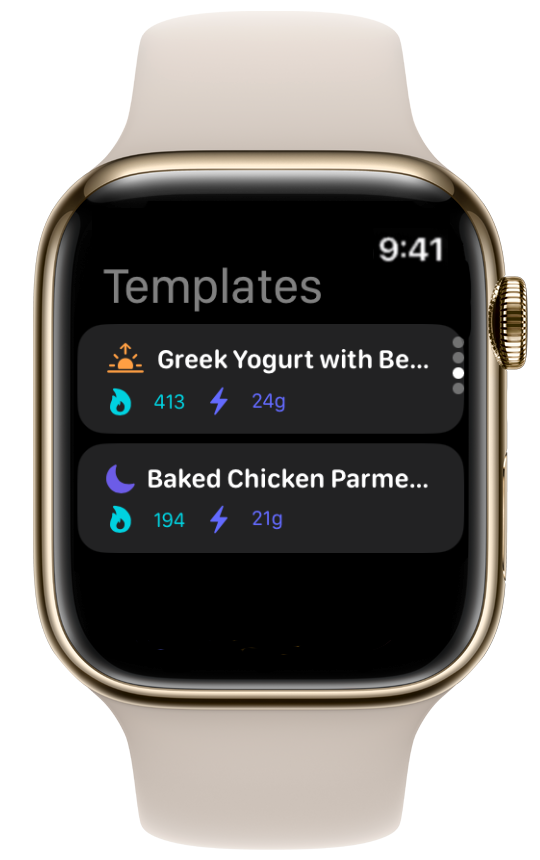
| Quick Log | Opens the template picker on your Apple Watch so you can log a saved meal with a single tap. |
These actions run entirely on your wrist. No need to pull out your iPhone - just press the Action Button, describe what you ate or pick a template, and you're done.
How to Set Up the Action Button on iPhone
Setting up the Action Button on your iPhone to log meals with ProteinLog takes less than a minute.
Step 1: Open Settings
Go to Settings → Action Button on your iPhone. You'll see a visual carousel of the available actions.
Step 2: Select Shortcut
Swipe through the options until you reach Shortcut. This is the option that lets you assign a custom action from any app that supports App Shortcuts.
Step 3: Choose a ProteinLog Action
Tap Choose a Shortcut, then search for ProteinLog. You'll see the three available actions:
- Log Food - recommended for most users
- Voice Log Food - great if you prefer hands-free logging
- Manually Log Food - for precise, manual entry
Select the one that fits your workflow. We recommend Log Food for the fastest experience.
Step 4: Press and Go
That's it. From now on, a long press of the Action Button will immediately open ProteinLog's AI photo scanner. Point it at your plate, and the AI handles the rest - identifying every item, estimating portions, and calculating calories, protein, carbs, fat, and micronutrients.
How to Set Up the Action Button on Apple Watch Ultra
The Apple Watch Ultra has its own dedicated ProteinLog shortcuts that run on the watch—no iPhone required. You can voice log a meal or quick log a saved template straight from your wrist.
Step 1: Add the Shortcut to Your Library
Open the Shortcuts app on your iPhone. Scroll down to the Apps section and tap ProteinLog. You'll see the available watch actions: Voice Log and Quick Log. Long-press the one you want and tap New Shortcut to add it to your personal Shortcuts library.
Step 2: Enable for Apple Watch
Tap the shortcut you just added, then tap the info (i) button. Turn on Show on Apple Watch. This syncs the shortcut to your watch so the Action Button can find it.
Step 3: Assign to the Action Button
On your Apple Watch Ultra, go to Settings → Action Button. Under Action, select Shortcut. You'll now see the ProteinLog shortcut you enabled - tap it to assign it.
You can also do this from the Watch app on your iPhone: go to Action Button → Shortcut and select the ProteinLog action.
Step 4: Press and Log
Press the orange Action Button on your Apple Watch Ultra and ProteinLog opens directly to the action you chose:
- Voice Log - Describe what you ate ("two eggs, toast, and a coffee") and the AI calculates the nutrition and logs it for you.
- Quick Log - Your saved meal templates appear instantly. Tap one to log it in a single press.
This works entirely on your wrist - during a workout, at the gym, cooking in the kitchen, or anywhere your iPhone isn't within reach. No phone needed. For Ultra-specific troubleshooting, see our Action Button food logging guide. To log without the Action Button at all, read standalone meal logging on Apple Watch.
Tips for Getting the Most Out of the Action Button
- Use Log Food for speed on iPhone. The AI photo scanner is the fastest way to log a meal. One press, one photo, done.
- Use Voice Log on Apple Watch when your hands are busy. Cooking dinner? Press the Action Button on your wrist and say "chicken breast with roasted vegetables and rice." The AI will parse it and log everything - no phone needed.
- Use Quick Log on Apple Watch for repeat meals. If you eat the same breakfast every day, save it as a template and assign Quick Log to the Action Button. One press, one tap, logged.
- Pair it with ProteinLog's widget. Add the ProteinLog widget to your Home Screen, Lock Screen, or watch face so you can always see your daily progress at a glance. See our watch face widgets guide for setup.
- Use it at restaurants. When your food arrives, one press and a quick photo on your iPhone is far less awkward than opening your phone, finding the app, navigating to the scanner, and then taking a photo. Or describe the meal from your Apple Watch if you'd rather not bring your phone out at the table.
Why This Matters for Consistency
Research consistently shows that the number one predictor of success in nutrition tracking is consistency. It's not about logging perfectly - it's about logging regularly. The Action Button removes the friction that kills consistency. When logging a meal is as easy as pressing a button, you're far more likely to do it every time.
We've seen users who struggled to log more than one meal a day suddenly tracking everything - breakfast, lunch, dinner, snacks - simply because the barrier to entry dropped to nearly zero. That's the power of reducing friction.
Frequently Asked Questions
-
Do I need a paid subscription to use the Action Button? The Action Button integration is included with ProteinLog Pro. You can try it free with the 7-day trial to see if it fits your workflow.
-
Does it work with the regular iPhone (not Pro)? The physical Action Button is only available on iPhone 15 Pro and later. However, you can still use ProteinLog's shortcuts through Siri or the Shortcuts app on any iPhone. For example, you could say "Hey Siri, Log Food" to get the same result.
-
Can I change which action the button triggers? Yes, you can change it at any time in Settings → Action Button. You might prefer Log Food during the day and switch to Voice Log Food in the evening - whatever works for your routine.
-
Does the Apple Watch Ultra Action Button work without my iPhone nearby? Yes. The Apple Watch actions—Voice Log and Quick Log—run on the watch. You can describe a meal or log a saved template directly from your wrist without your iPhone nearby.
-
What if I already use the Action Button for something else? If you've assigned the Action Button to another function (like the camera or flashlight), you can still access ProteinLog's shortcuts through Siri or by creating a custom Shortcut in the Shortcuts app. You don't have to give up your current Action Button assignment to benefit from fast logging.
Continue reading
Related guides
2 min read
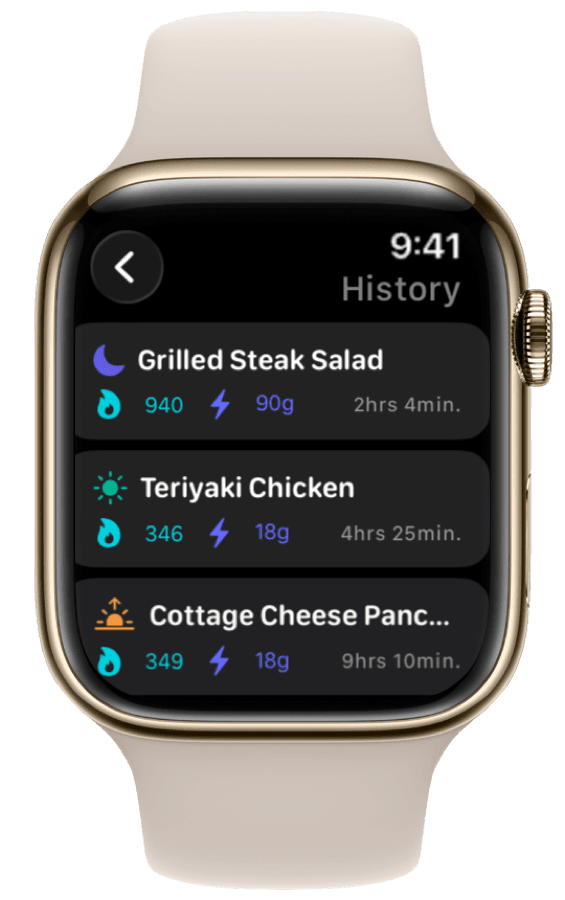
The Best Macro Tracking App for Apple Watch Ultra Users
ProteinLog is the best macro tracking app for Apple Watch Ultra. Voice logging, Quick Log templates, watch face widgets, and Action Button setup.
4 min read
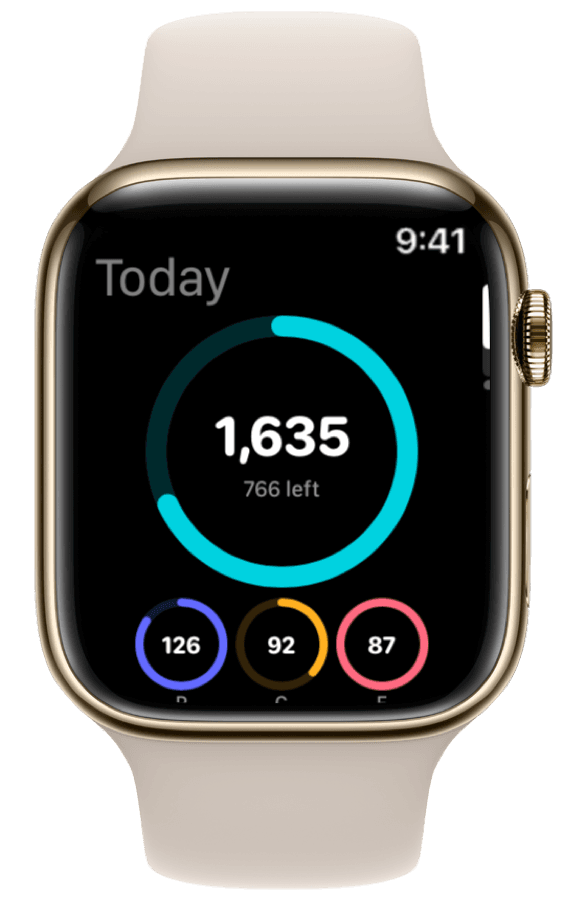
How to Track Calories & Macros on Apple Watch in 2026 (The Complete Guide)
The complete Apple Watch calorie tracker guide for 2026. Compare apps, set up watch face widgets, voice logging, Action Button shortcuts, and Apple Health sync.
10 min read
The Best Apple Watch Workflows for Tracking Meals on the Go
Three Apple Watch meal tracking workflows for gym, restaurant, and desk—voice logging, photo capture, widgets, and templates for fast macro tracking on the go.
Log Meals from Your Wrist
Try ProteinLog free for 7 days. Voice logging, watch complications, and Action Button shortcuts work on Apple Watch without your iPhone nearby. See the complete Apple Watch guide or use our free macro calculator to set your targets first.
Download on the App Store