TL;DR
If you eat similar meals most days, typing the same foods into a tracker every morning is wasted effort. This guide on how to create reusable meal templates for daily tracking shows you how to save repeat meals once, log them in one tap from iPhone or Apple Watch, and keep macro tracking consistent without the friction that causes burnout. Start with five templates, expand only when you notice repeat searches, and pair templates with Quick Log on your wrist for the fastest workflow.
Why Templates Beat "Recent Foods" Lists
Most calorie trackers offer a "recent" or "frequent" foods list. That helps, but it is not the same as a true template. Recent lists show individual items—you still tap oats, then banana, then protein powder, then adjust portions each time. A template logs the entire meal as a single action with preset portions.
The difference matters for adherence. Research on habit formation consistently shows that reducing friction increases consistency. Templates remove the highest-friction step in daily tracking: reconstructing the same meal from scratch.
| Approach | Taps to log "weekday breakfast" | Portion consistency |
|---|---|---|
| Manual search (3 items) | 8–12 taps | Varies daily |
| Recent foods list | 5–8 taps | Varies daily |
| Saved meal template | 1 tap | Fixed defaults |
| Template + Apple Watch Quick Log | 1 tap from wrist | Fixed defaults |
If you meal prep, eat the same office lunch, or drink an identical post-workout shake, templates are the highest-leverage feature in any macro tracker.
Which Meals Deserve a Template?
Do not template everything on day one. Start by auditing a typical week:
- Breakfast — same oats, eggs, or smoothie most mornings?
- Post-workout — consistent shake or snack?
- Work lunch — meal prep containers or a regular order?
- Afternoon snack — yogurt, fruit, protein bar rotation?
- Evening routine — tea with milk, dessert, or a second protein hit?
Any meal you log three or more times per week is a template candidate. The USDA Dietary Guidelines emphasize consistent dietary patterns over daily novelty—most people genuinely repeat a small set of meals.
Good template candidates:
- Meal prep containers (same macros all week)
- Standard breakfast bowls
- Protein shakes with fixed scoop counts
- Regular takeout orders (log once accurately, re-use weekly)
- Snack combinations you graze on daily
Poor template candidates:
- One-off restaurant meals (save only if you order the same dish repeatedly)
- Holiday or travel meals
- Recipes you are still experimenting with
Step-by-Step: Create Your First Template in ProteinLog
1. Log the meal once, accurately
Use whichever logging method fits—photo, voice, barcode, or search. Take time to get portions right on this first pass. If you meal prep, weigh the container contents now. Accuracy at creation time saves corrections later.
2. Save as template
After logging, tap Save as Template. Give it a descriptive name:
- ✅ "Meal prep – chicken rice bowl"
- ✅ "Post-gym shake (2 scoops)"
- ❌ "Lunch" (too vague when you have three lunches)
3. Confirm default portions
Each item stores a default portion—the amount that logs when you Quick Log. Verify quantities match what you actually eat. If your chicken breast is 170 g, not 120 g, set that now.
4. Assign a meal type
Tag the template as breakfast, lunch, dinner, or snack. This keeps your daily diary organized and helps Apple Watch Quick Log sort templates logically.
5. Test with Quick Log
Tap the template to log instantly. Check that calories, protein, carbs, and fat match your expectations. Edit the template if anything is off—one correction now prevents weeks of drift.
Repeat for your next four high-frequency meals. Five templates often cover 60–70% of daily logging volume for typical trackers.
Template Naming and Organization Tips
As your library grows, naming conventions prevent chaos:
| Naming pattern | Example | When to use |
|---|---|---|
Meal prep – [dish] | Meal prep – turkey chili | Batch-cooked containers |
[Day] – [meal] | Weekday – breakfast oats | Routine weekday meals |
[Context] – [food] | Gym – whey shake | Situational meals |
[Restaurant] – [order] | Chipotle – chicken bowl | Repeat takeout |
Review templates monthly. Delete ones you have not used in 30 days. Update portions if your prep sizes change.
Meal Prep + Templates: The Perfect Pair
Batch cooking is one of the most effective strategies for hitting macro targets. The CDC's meal planning resources emphasize preparing balanced meals in advance to reduce impulsive food choices—templates extend that same logic to the tracking side. The workflow:
- Calculate macros once during your Sunday prep session.
- Portion into containers with consistent weights.
- Log one container in ProteinLog with exact grams.
- Save as template — e.g., "Prep – burrito bowl M".
- Quick Log each weekday in one tap.
This mirrors what meal prep planners recommend: calculate once, eat all week without re-tracking. Tools like batch-cook optimizers emphasize the same principle—front-load the math, eliminate daily decision fatigue.
Compare your daily totals against targets using our free macro calculator during prep day, not every evening.
Quick Log on Apple Watch
Templates deliver the most value when logging takes seconds—not when you are standing in your kitchen but when you are between meetings, finishing a workout, or driving home with your phone out of reach.
Apple documents watch app installation and complications in the Apple Watch User Guide. ProteinLog's Apple Watch app lets you Quick Log saved templates directly from your wrist:
- Open ProteinLog on Apple Watch.
- Navigate to Templates.
- Tap your meal — the full template logs with default portions.
- Confirm on the macro dashboard complication.
For even faster access, configure the Action Button on Apple Watch Ultra to open Quick Log or a specific template. Our Apple Watch meal tracking workflows guide walks through wrist-based logging patterns for gym, office, and travel.
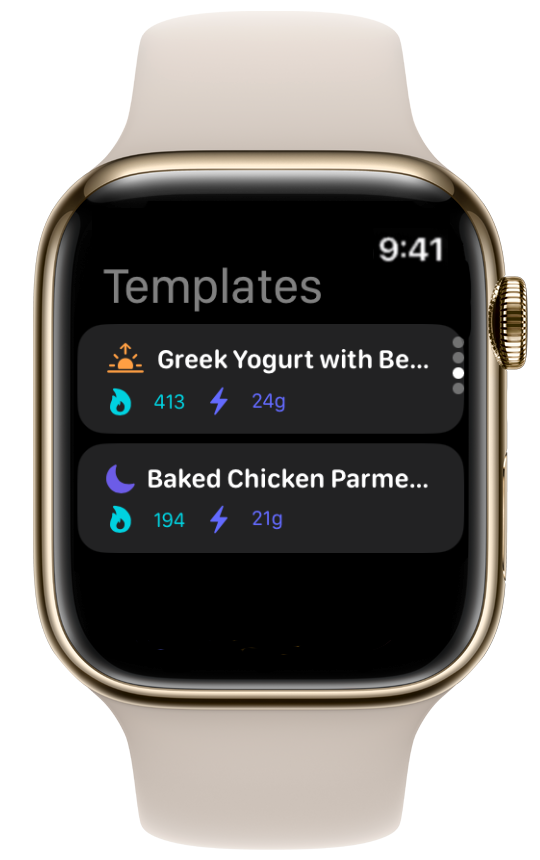
You can also log templates from the Home Screen widget without opening the full app—useful when your phone is already in hand during meal prep cleanup.
Templates vs. Other Speed Features
ProteinLog offers several ways to log fast. Templates fit a specific niche:
| Feature | Best for | Requires prior setup |
|---|---|---|
| Meal templates | Identical repeat meals | Yes — save once |
| AI photo logging | Variable home-cooked plates | No |
| Voice logging | Hands-free, known dishes | No |
| Barcode scan | Packaged foods | No |
| Recent meals copy | Similar but not identical meals | Partial |
Use templates for meals that are literally the same. Use photo or voice for everything else. Most power users rely on 5–10 templates plus photo logging for dinners and social meals.
See our complete Apple Watch calorie tracker guide for how templates fit alongside complications and voice logging in a full wrist workflow.
Building a Template Library Over Time
Week 1: Create five core templates. Do not optimize further.
Week 2: Notice any meal you searched for more than twice. Template it.
Week 3: Add a restaurant or takeout template if you order the same thing regularly.
Week 4: Review use counts. Delete unused templates. Adjust portions on any that feel off.
| Week | Action | Expected outcome |
|---|---|---|
| 1 | 5 core templates | 60%+ of meals one-tap |
| 2 | +2 situational templates | Fewer manual searches |
| 3 | Restaurant/takeout template | Dining-out consistency |
| 4 | Audit and prune | Lean, accurate library |
The International Society of Sports Nutrition position stands on protein intake emphasize consistent daily protein distribution—not meal variety—for most physique and performance goals. Templates align your logging workflow with that reality.
Common Template Mistakes
Template too early. Saving before portions are accurate bakes errors into every future log. Weigh once during prep.
Too many templates. Fifteen templates you cannot remember is worse than five you use daily. Start small.
Never updating. Your prep portions change; your template should too. Edit after any recipe change.
Using templates for variable meals. A salad that changes toppings daily needs photo logging, not a fixed template.
Skipping Quick Log on Watch. If you wear an Apple Watch, set up wrist logging in week one—not month two.
How ProteinLog Makes This Easier
ProteinLog built meal templates as a first-class feature—not a buried "copy yesterday" button. Save any logged meal as a template, Quick Log from iPhone, Apple Watch, Home Screen widget, or Action Button shortcut. Default portions stay locked until you choose to edit them, so one tap means one consistent meal.
If repeat meals dominate your week, templates will save you more time than any other tracking feature. Start your free trial and build your first five templates today.
Frequently asked questions
What is a meal template in a macro tracking app?
A saved combination of foods with default portions that logs in one tap. It replaces searching each ingredient every time you eat the same meal.
How many meal templates should I create?
Start with five covering your most frequent meals—breakfast, post-workout, work lunch, and a snack or two. Add more only when you notice yourself searching for the same meal repeatedly.
Can I log meal templates from Apple Watch?
Yes. Open Templates on ProteinLog for Apple Watch and tap to Quick Log. Configure complications or the Action Button for even faster access. See our Apple Watch calorie tracker guide for full setup.
Do templates work for meal prep containers?
They are ideal for meal prep. Weigh once, log once, save as template, then Quick Log each day that week. Your macros stay consistent without daily data entry.
Can I adjust portions when logging a template?
Quick Log uses stored default portions for speed. If today's portion differs, log manually or edit the template after. For consistently variable meals, photo or voice logging may work better.
How are templates different from copying yesterday's meal?
Copying yesterday reconstructs a past diary entry—including foods you might skip today. Templates are named, curated meals with fixed portions designed for intentional repeat logging.
Continue reading
Related guides
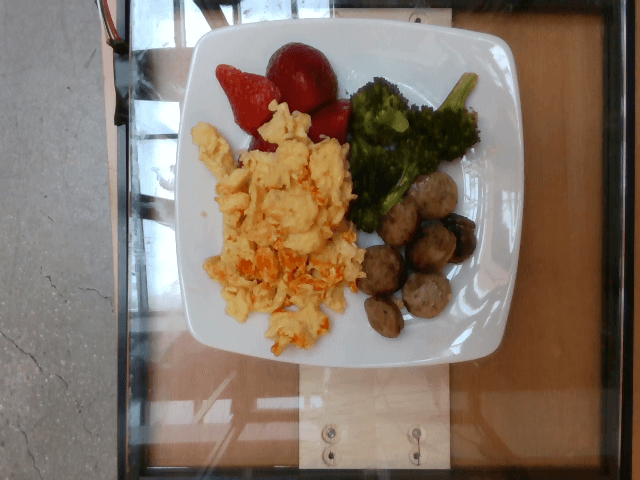
11 min read
Voice Calorie Tracker Guide 2026: Log Macros by Speaking
Use a voice calorie tracker to log meals faster—phrase tips, accuracy checks, method comparison, and Apple Watch workflows.
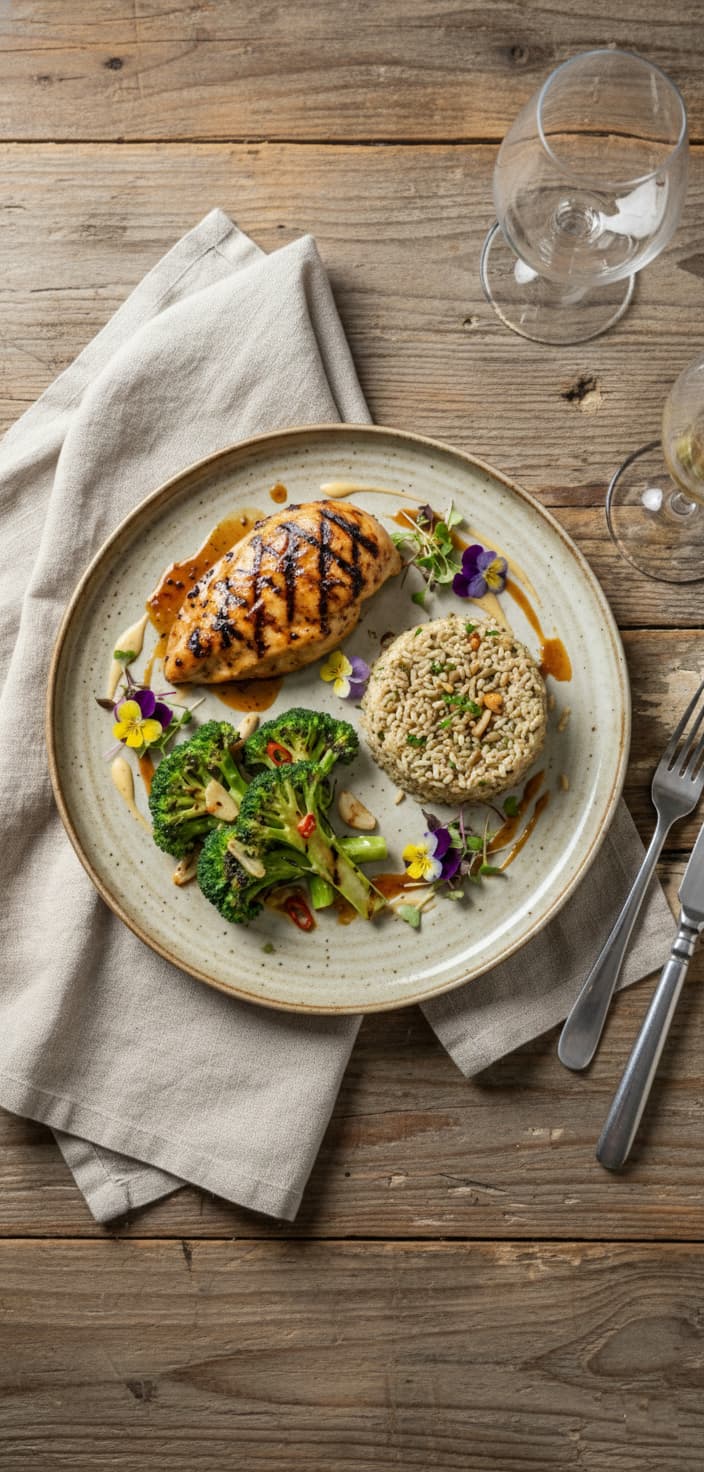
8 min read
How to Log Restaurant Meals and Estimate Portions with Photo Logging
Learn how to log restaurant meals and estimate portions with photo logging. Use menu data, hand portions, and AI to track dining out accurately.
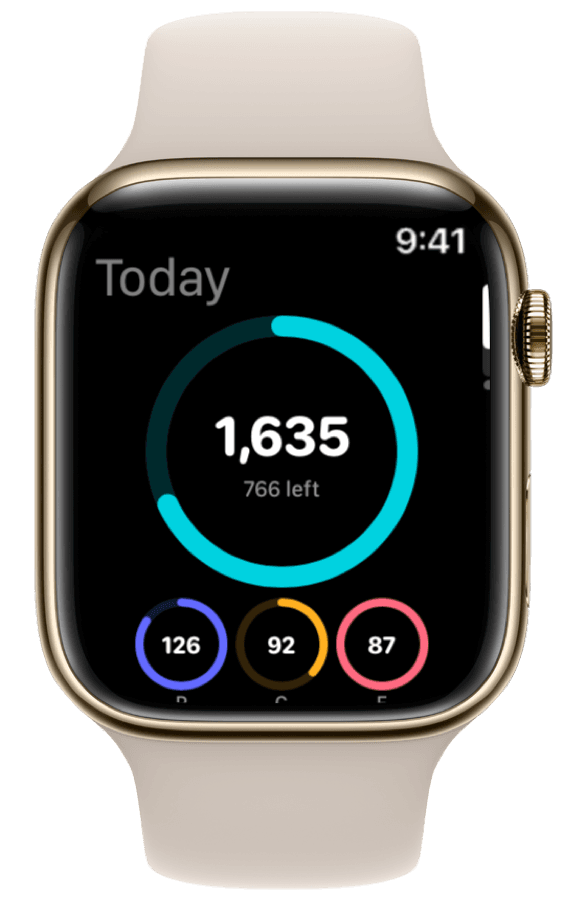
4 min read
How to Track Calories & Macros on Apple Watch in 2026 (The Complete Guide)
The complete Apple Watch calorie tracker guide for 2026. Compare apps, set up watch face widgets, voice logging, Action Button shortcuts, and Apple Health sync.
Ready to Track Smarter, Not Harder?
Try ProteinLog free for 7 days. AI photo logging, verified nutrition data, Apple Watch logging, and our free macro calculator use the same targets as goal setup.
Download on the App Store