TL;DR
Switching from MyFitnessPal does not have to mean starting from zero. This step by step plan to switch from MyFitnessPal without losing history walks you through exporting your MFP diary, archiving what matters, setting up ProteinLog on iPhone and Apple Watch, and rebuilding repeat meals as one-tap templates. You will not get a perfect automatic import—but you can preserve your reference data and reach faster daily logging within an hour.
Why People Leave MyFitnessPal in 2026
MyFitnessPal still has one of the largest food databases on the market. For many users, though, the daily experience has become the bottleneck: ads on the free tier, paywalled features, a cluttered interface, and a user-generated database that often contains duplicate or inaccurate entries.
If you are reading a MyFitnessPal alternative comparison, you probably already know what you want—faster logging, cleaner design, verified nutrition data, and deeper Apple ecosystem integration. ProteinLog delivers those through AI photo logging, voice entry, meal templates, and a full Apple Watch app.
The goal of this migration is not to recreate ten years of diary entries line by line. It is to keep your historical reference while building a faster system for everything you log going forward.
What You Can (and Cannot) Migrate from MyFitnessPal
Before you delete anything, understand what transfers cleanly and what does not.
| Data type | Can you keep it? | How |
|---|---|---|
| Full food diary (CSV) | Yes, for reference | MFP Premium export → zip of CSV files |
| Printable diary reports | Yes, for reference | MFP website → PDF save (free accounts) |
| Custom recipes | Partially | Rebuild in ProteinLog or save as templates |
| Weight / progress photos | Reference only | Export from MFP; re-enter current weight in ProteinLog |
| Streaks & badges | No | App-specific; start fresh in ProteinLog |
| Friends / social feed | No | Not applicable in ProteinLog |
| Apple Health sync history | Continues | Health data stays in Apple Health regardless of app |
ProteinLog uses verified nutrition databases (USDA and FatSecret) rather than a crowd-sourced catalog. That means some MFP food names will not match one-to-one—but the trade-off is fewer bad entries and less time fixing other people's mistakes.
Pre-Migration Checklist
Work through this checklist before you install a new app. Checking boxes now saves frustration later.
- Decide your cutover date. Pick a Monday or the start of a new week so daily totals stay clean.
- Export MFP data (Premium) or save printable reports (free). See steps below.
- List your top 10 repeat meals. Breakfast, post-workout shake, office lunch, etc.
- Screenshot your current macro targets from MFP settings.
- Note your Apple Health permissions so you know what was syncing.
- Start ProteinLog's 7-day free trial (no credit card required) before canceling MFP Premium—overlap avoids a gap in tracking.
- Install ProteinLog on Apple Watch if you wear one. See our Apple Watch calorie tracker guide.
Step 1: Export Your MyFitnessPal Data
For Premium or Premium+ subscribers
MyFitnessPal's official data export sends a zip file of CSV spreadsheets to your registered email. According to MyFitnessPal's Data Export FAQs, the process works on iOS, Android, and the web:
- Open the Nutrition or Progress section.
- Tap or click Export.
- Choose your date range (select "all time" if you want the full archive).
- Confirm your email address and submit.
- Download the zip from your inbox and unzip it on your Mac or PC.
The export typically includes separate CSV files for nutrition, exercise, and measurements. Open them in Apple Numbers, Excel, or Google Sheets for browsing.
For free account users
Free MFP accounts cannot download CSV files. You still have options documented in MyFitnessPal's export help article:
- Log in at myfitnesspal.com.
- Go to the Food tab → View Full Report (Printable).
- Set your date range and generate the report.
- Save as PDF for your personal archive.
This is not machine-readable, but it preserves the history you might want for a coach, doctor, or your own review.
Optional: developer export tools
Technically inclined users sometimes use the open-source python-myfitnesspal library to pull diary data programmatically. This is unofficial and not supported by MyFitnessPal, but it exists for people who want scripted backups. Read the library documentation before attempting this route.
Step 2: Archive What Matters
Once you have your export, spend fifteen minutes curating it:
- Filter to the last 90 days if the full file is overwhelming.
- Highlight foods you logged 3+ times per week. These become template candidates.
- Save the CSV/PDF to iCloud Drive or your preferred backup folder.
- Record your current weight and goal so you can enter them fresh in ProteinLog.
You are building a personal reference library—not migrating every single entry. Most people actively reference fewer than twenty repeat meals.
Step 3: Set Up ProteinLog on iPhone
Download ProteinLog from the App Store and complete onboarding:
- Enter your stats and goal (lose, maintain, or gain). ProteinLog calculates your daily calorie and macro targets using standard formulas—the same starting point most trackers use.
- Connect Apple Health if you want activity calories and body metrics to sync. See Apple's Health app guide.
- Log your first meal using whichever method feels natural: photo, voice, barcode, or text search.
- Review the macro dashboard so you know where protein, carbs, and fat appear throughout the day.
If your MFP targets felt dialed in, you can manually adjust ProteinLog's goals to match. Consistency across the transition week matters more than perfect formulas.
Step 4: Rebuild Repeat Meals as Templates
Templates are the single biggest time-saver when switching apps. Instead of searching for "oats, banana, whey" every morning, you tap once and the full meal logs instantly.
How to create a template in ProteinLog:
- Log a meal normally (or open a meal you already logged today).
- Tap Save as Template and give it a clear name—"Weekday breakfast" beats "Meal 1."
- Confirm default portions for each item.
- Repeat for your top 5–10 meals from the MFP export highlight list.
Within a week, most of your logging volume should be covered by templates. The USDA FoodData Central database underpins many whole-food entries, so staples like chicken breast, rice, and eggs resolve quickly even without MFP's user-submitted duplicates.
Step 5: Configure Apple Watch for Standalone Logging
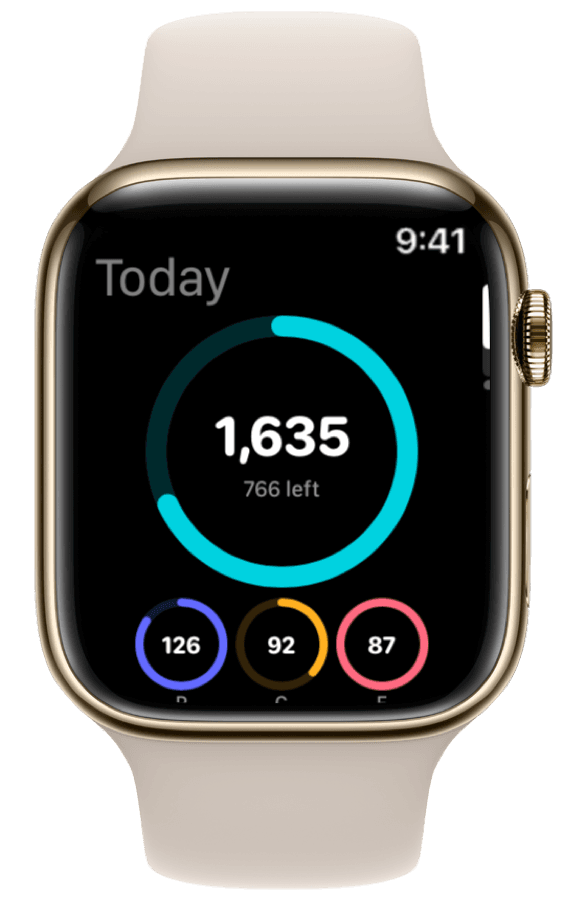
If you wear an Apple Watch, set it up early in your migration—not as an afterthought. MyFitnessPal's watch app shows totals and recent foods but does not support voice logging or template quick-log from the wrist.
Follow our standalone meal logging on Apple Watch guide to:
- Install ProteinLog on your watch from the Watch app on iPhone.
- Add a watch face widget for at-a-glance protein and calories.
- Enable voice logging for meals when your phone is in a bag or locker.
- Pin your most-used templates for one-tap logging from the watch.
The Apple Watch User Guide covers watch face editing if you have not customized one before.
Step 6: Run a Parallel Week (Recommended)
For seven days, track in both apps if your schedule allows—or at minimum, verify ProteinLog captures everything you need:
| Day | Task |
|---|---|
| Mon | Log all meals in ProteinLog only; compare end-of-day totals to your expectations |
| Tue | Create 2 more templates from meals you searched repeatedly |
| Wed | Log lunch from Apple Watch via voice or template |
| Thu | Test photo logging on a meal you would have typed manually in MFP |
| Fri | Review the week; adjust macro targets if needed |
| Sat–Sun | Optional: spot-check against MFP export for any missed staples |
After a clean week, cancel MFP Premium if applicable and remove the app. Your exported CSV/PDF archive remains on disk regardless.
MyFitnessPal vs. ProteinLog: Migration Comparison
| Feature | MyFitnessPal | ProteinLog |
|---|---|---|
| Data export (CSV) | Premium only | N/A (you export from MFP) |
| Food database | User-generated, very large | Verified (USDA, FatSecret) |
| AI photo logging | Limited | Core feature |
| Meal templates | Recent foods / copy meal | Named templates, one-tap re-log |
| Apple Watch logging | Re-log recent only | Voice, templates, watch widgets |
| Ads (free tier) | Yes | No |
| Price | Premium subscription | $69.99/year, 7-day free trial |
MyFitnessPal wins on raw database size and social features. ProteinLog wins on logging speed, data quality, and Apple Watch depth—exactly what most switchers care about.
How ProteinLog Makes This Easier
ProteinLog was built for people who found traditional tracking too slow. Templates replace the MFP habit of scrolling recent foods. Photo and voice logging cover meals you never bothered to enter in MFP because search took too long. And the Apple Watch app means logging survives the moments when your phone is not in hand.
Start with the 7-day free trial—no credit card required—and rebuild your top templates in the first session. Most switchers report that daily logging takes half the time within two weeks.
Frequently asked questions
Can I import my MyFitnessPal diary into ProteinLog automatically?
Not today. Export your MFP history for reference, then rebuild your high-frequency meals as ProteinLog templates. The investment upfront pays off every day after.
Will I lose my MyFitnessPal streak when I switch?
Yes—streaks are app-specific. Focus on building a sustainable logging habit with faster tools rather than preserving a number tied to an app you are leaving.
Do I need MyFitnessPal Premium to export my data?
Full CSV export requires Premium or Premium+. Free users can save printable diary reports from the MFP website as PDFs.
How long does switching from MyFitnessPal to ProteinLog take?
Core setup takes 30–60 minutes. Rebuilding templates for your most common meals might spread across the first week. Historical archive export is a one-time task.
Is ProteinLog better than MyFitnessPal for Apple Watch users?
If logging from your wrist matters, yes. ProteinLog supports voice logging, template quick-log, watch face widgets, and Action Button shortcuts—capabilities MyFitnessPal does not offer on Apple Watch. See our full Apple Watch calorie tracker guide for setup details.
What happens to my Apple Health data when I switch apps?
Data already written to Apple Health stays there. Connect ProteinLog to Health during setup so nutrition and activity continue syncing under your new app.
Continue reading
Related guides
8 min read
The Best Cronometer Alternative with a Full Apple Watch App
Looking for a Cronometer alternative with Apple Watch support? Compare micronutrient depth vs wrist logging, voice entry, and watch face widgets before you buy.
11 min read
Voice Calorie Tracker Guide 2026: Log Macros by Speaking
Use a voice calorie tracker to log meals faster—phrase tips, accuracy checks, method comparison, and Apple Watch workflows.
4 min read
How to Track Calories & Macros on Apple Watch in 2026 (The Complete Guide)
The complete Apple Watch calorie tracker guide for 2026. Compare apps, set up watch face widgets, voice logging, Action Button shortcuts, and Apple Health sync.
Ready to Track Smarter, Not Harder?
Try ProteinLog free for 7 days. AI photo logging, verified nutrition data, Apple Watch logging, and our free macro calculator use the same targets as goal setup.
Download on the App Store