Quick Answer: ProteinLog supports the Model Context Protocol (MCP), letting AI assistants like Claude and Cursor access your nutrition data in real time for personalised coaching and insights.
AI assistants are getting remarkably good at understanding context and giving personalised advice. But there's always been a gap: they can talk about nutrition in general terms, but they can't see your actual data. They don't know what you ate for lunch, whether you've hit your protein target, or how your macros have been trending this week. ProteinLog's MCP integration closes that gap entirely.
With MCP enabled, your AI assistant becomes a real-time nutrition coach that knows exactly what you've eaten, what your goals are, and what you need to do to stay on track - all without you having to copy and paste anything.
What Is MCP?
MCP stands for Model Context Protocol. It's an open standard that allows AI applications to connect securely to external data sources and tools. Think of it as a universal adapter that lets your AI assistant plug directly into the apps and services you use every day.
Instead of telling your AI assistant "I ate 150g of chicken breast and a cup of rice for lunch," MCP lets the assistant pull that information directly from ProteinLog. It sees your actual logged meals, your macro breakdown, and your daily goals - all in real time.
MCP was developed by Anthropic and has been adopted by a growing number of AI tools, including Claude Desktop, Cursor, Windsurf, and others.
What Can Your AI Assistant Do with ProteinLog?
Once connected, your AI assistant has access to three capabilities:
View Your Meals
Your assistant can retrieve all the meals and food items you've logged for any given day. This includes:
- Each meal (breakfast, lunch, dinner, snacks)
- Every food item within each meal
- Full nutritional data: calories, protein, carbs, and fat per item
- Portion sizes and serving units
- The time each meal was logged
This means you can ask questions like:
- "What did I eat today?"
- "How much protein have I had so far?"
- "What was my highest-calorie meal this week?"
And your assistant will answer with your actual data - not generic estimates.
View Your Goals
Your assistant can see your daily nutritional targets:
- Daily calorie goal
- Protein goal (grams)
- Carb goal (grams)
- Fat goal (grams)
This lets it give you contextual advice. Instead of generic guidance, it can say: "You've had 1,450 calories today and your goal is 2,200. You've got room for a solid dinner - here's a high-protein option that fits your remaining macros."
Update Your Goals
Your assistant can also update your daily goals on your behalf. If you're working with your AI assistant to dial in your nutrition plan, you can have a conversation like:
- "I want to increase my protein to 180g per day."
- "Set my calorie target to 2,000 for a cut."
- "Lower my fat goal to 60g."
The assistant will update your ProteinLog goals directly - no need to open the app and change settings manually.
How to Set Up MCP with Claude Desktop
Connecting ProteinLog to Claude Desktop takes just a few steps.
Step 1: Open Claude Desktop Settings
In Claude Desktop, go to Settings → MCP (or Settings → Developer → MCP, depending on your version).
Step 2: Add ProteinLog as an MCP Server
Add a new MCP server with the following configuration:
{
  "mcpServers": {
  "proteinlog": {
  "url": "https://www.proteinlog.app/mcp"
  }
  }
}
Step 3: Authenticate
When you first connect, you'll be prompted to sign in with your ProteinLog account. This uses secure OAuth authentication - your password is never shared with the AI assistant. You'll grant permission for the assistant to read your nutrition data and update your goals.
Step 4: Start Asking Questions
Once connected, you can immediately start having data-driven conversations about your nutrition. Try asking:
- "Summarise what I've eaten today and how close I am to my goals."
- "Based on what I've eaten so far, what should I have for dinner to hit my protein target?"
- "I've been tracking for a week - analyse my eating patterns and suggest improvements."
How to Set Up MCP with Cursor
If you use Cursor as your coding environment and want your AI assistant to be nutrition-aware while you work, the setup is similar.
Step 1: Open Cursor Settings
Go to Cursor Settings → MCP.
Step 2: Add the ProteinLog MCP Server
Add a new MCP server with the type set to SSE or HTTP and the URL set to:
https://www.proteinlog.app/mcp
Step 3: Authenticate and Use
Authenticate with your ProteinLog account when prompted. Your Cursor AI assistant can now access your nutrition data during your coding sessions. Ask it to check your macros, suggest a meal, or update your goals - all without leaving your editor.
Why This Matters
The power of MCP isn't just convenience - it's the ability to have genuinely personalised nutrition coaching from an AI that actually knows your situation.
Generic nutrition advice is everywhere. "Eat more protein." "Stay in a calorie deficit." "Eat your vegetables." This advice is correct but useless without context. When your AI assistant can see that you've had 40g of protein by 3pm and your goal is 150g, it can give you specific, actionable advice: "You're significantly behind on protein. For dinner, consider a meal centred around salmon or Greek yogurt to close the gap."
This transforms an AI assistant from a generic chatbot into something much closer to a personal nutritionist - one that's available 24/7 and knows your data inside and out.
Privacy and Security
Your data security is a priority. Here's how the MCP integration keeps your information safe:
- OAuth authentication - you explicitly grant permission, and you can revoke it at any time.
- No stored credentials - your ProteinLog password is never shared with or stored by the AI assistant.
- Read and write scopes - the assistant can only access the specific data you've authorised (meals and goals). It cannot access your account settings, payment information, or any other personal data.
- Encrypted in transit - all data is transmitted over HTTPS.
Use Cases and Ideas
Once MCP is set up, here are some ways to get the most out of it:
- Daily check-in: "How am I doing today? Am I on track?"
- Meal planning: "I have chicken, sweet potatoes, and spinach. What can I make that fits my remaining macros?"
- Weekly review: "Pull my meals from the last 7 days and tell me what patterns you see."
- Goal adjustment: "I'm starting a lean bulk. Set my calories to 2,800 and protein to 180g."
- Restaurant prep: "I'm going to a sushi restaurant tonight. Based on what I've eaten today, how much room do I have for dinner?"
- Accountability: "I didn't log anything yesterday. Remind me why tracking matters and help me get back on track today."
Frequently Asked Questions
-
Which AI assistants support MCP? MCP is supported by Claude Desktop, Cursor, Windsurf, and a growing list of AI tools. Any application that supports the Model Context Protocol can connect to ProteinLog.
-
Do I need a ProteinLog Pro subscription? Yes, MCP integration is a Pro feature. You can try it with the 7-day free trial.
-
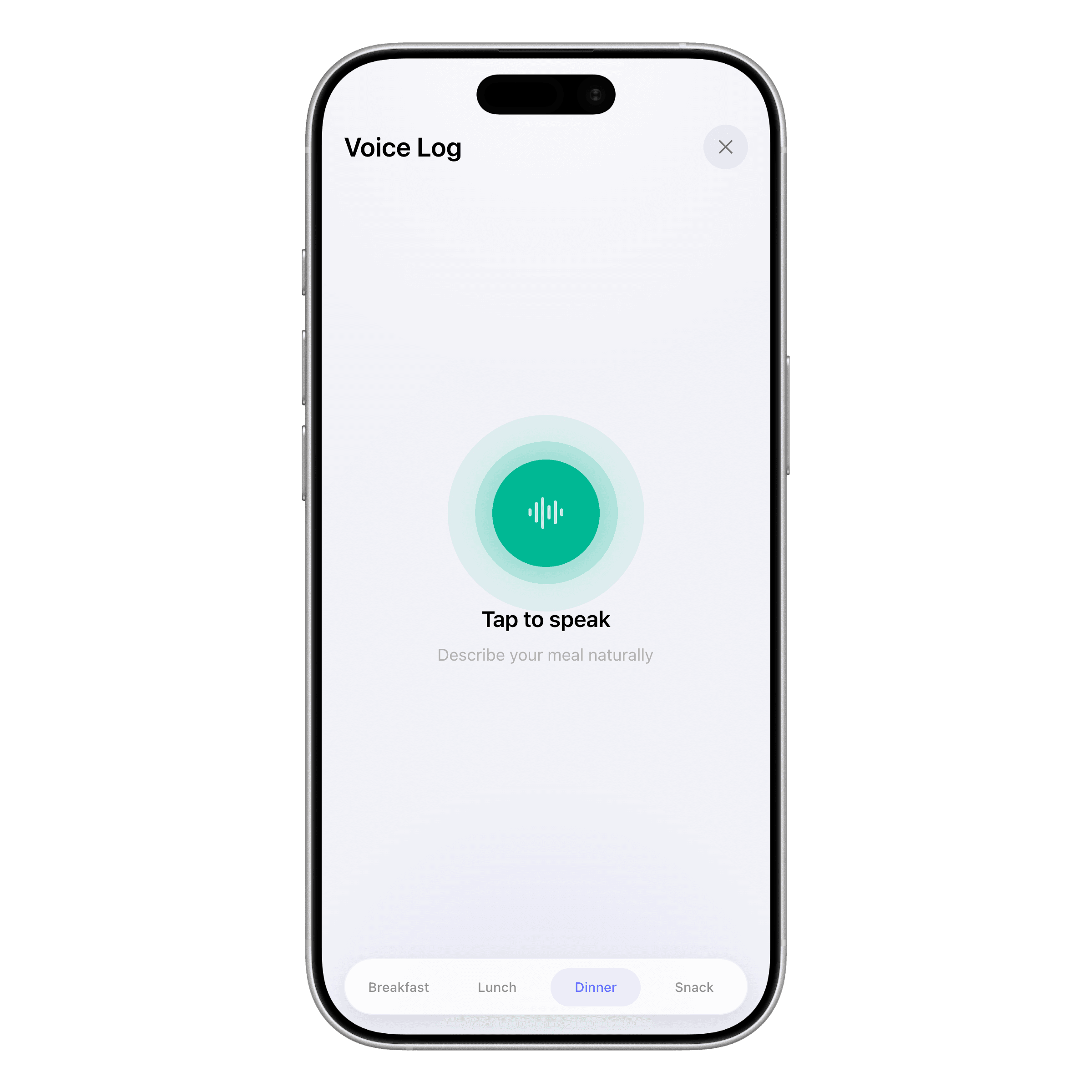
Can the AI assistant log meals for me? Currently, the MCP integration allows your assistant to view your meals and manage your goals. Meal logging is done through the ProteinLog app using the AI photo scanner, voice logging, or manual entry. We're exploring adding meal logging via MCP in a future update.
-
Is my nutrition data used to train AI models? No. Your data is sent to the AI assistant only during your active session to answer your questions. It is not used for model training. Refer to the privacy policy of your specific AI assistant for details on how they handle session data.
-
Can I disconnect ProteinLog from my AI assistant? Yes, you can revoke access at any time from your ProteinLog account settings or by removing the MCP server configuration from your AI assistant.
-
Does it work on mobile? MCP is currently supported in desktop AI applications. As mobile AI assistants adopt MCP support, ProteinLog will be ready to connect.
Continue reading
Related guides
9 min read
What is Model Context Protocol (MCP) and How Does It Connect to Your Nutrition Data?
What is Model Context Protocol and how does it link nutrition data? Plain-language guide to MCP, example prompts, and connecting AI assistants to ProteinLog.
4 min read
The Rise of the AI Calorie Tracker: Are They Worth It in 2026?
AI calorie trackers promise to make food logging faster and easier with photo and voice recognition. We explore how they work and if they live up to the hype.
11 min read
Voice Calorie Tracker Guide 2026: Log Macros by Speaking
Use a voice calorie tracker to log meals faster—phrase tips, accuracy checks, method comparison, and Apple Watch workflows.
Ready to Track Smarter, Not Harder?
Try ProteinLog free for 7 days. AI photo logging, verified nutrition data, Apple Watch logging, and our free macro calculator use the same targets as goal setup.
Download on the App Store